3Dream vs RoomSketcher: Complete Comparison
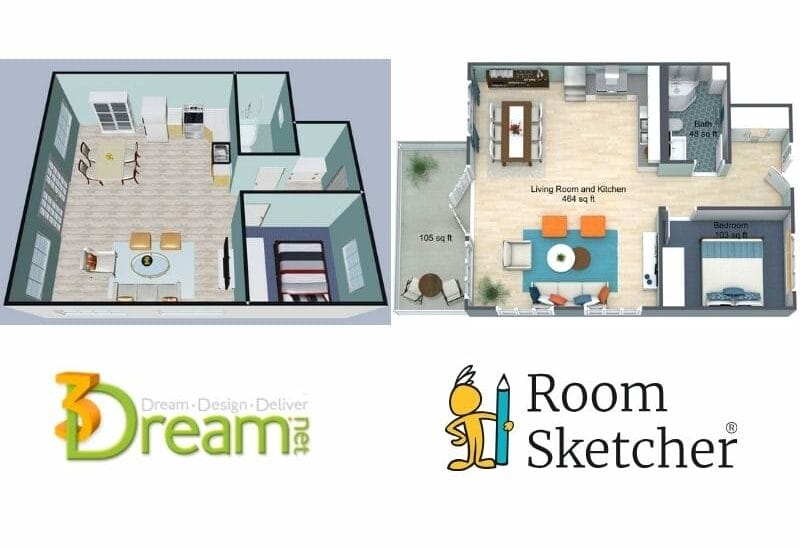
Choosing between 3Dream and RoomSketcher for your 2D and 3D floor plans? Both tools help you create layouts, but they're built with different priorities. This guide breaks down the key features, strengths, and limitations.

💡Article Summary:
3Dream works well for quick room concepts, while RoomSketcher offers a more complete solution for professional floor plans. Its intuitive workflow, advanced measurement tools, high-quality visuals, and strong customer support make it better suited for real estate, interior design, and property-related workflows.
3Dream and RoomSketcher are popular floor plan software options, and it can be hard to decide which one to choose. We've tested both to provide you with a complete guide that covers everything from how they work to virtual tours.
Side-by-Side Comparison
| Feature | 3Dream | RoomSketcher |
|---|---|---|
| Scan Interior | - | Yes - iOS LiDAR |
| Draw Floor Plans | Yes | Yes |
| Order Floor Plans | - | Yes |
| Trace Over an Existing Floor Plan | Yes | Yes |
| Convert an Existing Floor Plan | - | Yes |
| Edit Floor Plans | Yes | Yes |
| 2D Floor Plans | Yes - Snapshot | Yes - Downloadable 2D Floor Plans (JPG, PDF) |
| 3D Floor Plans | Yes - Snapshot | Yes |
| 3D Visualization | Yes - 3D Snapshots | Yes - 3D Photos, 360 Views |
| 3D Walkthrough | Yes - QR code link | Yes |
| Site Plans | - | Yes |
| Measurements | - | Yes - Automatic, to scale |
| Total Area Calculations | - | Yes |
| Customization of Floor Plans | - | Yes |
| Branded Floor Plans | - | Yes |
| Customizable Templates | - | Yes |
| Cloud Storage | Yes | Yes |
| Furniture Library | Yes + Favorites list | Yes + Favorites list |
| 2D Symbols | - | Yes + custom symbols |
| Flexible Pricing | - | Free, Pro, Team |
| Customer Support | Email, phone | Chat, Email, Help Center, 1:1 Training for Business Users |
| Learning Material | Yes | Tutorials, Webinars |
| Sharing | Project link, share snapshots as PNG | Project link - includes presentation with images, floor plans, and walkthroughs, share floor plans and images as PDF, JPG, PNG |
Who Uses 3Dream and Who Uses RoomSketcher?
3Dream
- Interior designers
- Furniture retailers
RoomSketcher
- Real estate professionals
- Home builders
- Interior designers
- Remodelers
- Anyone looking for professional-quality results with less hassle
How do They Work?
3Dream
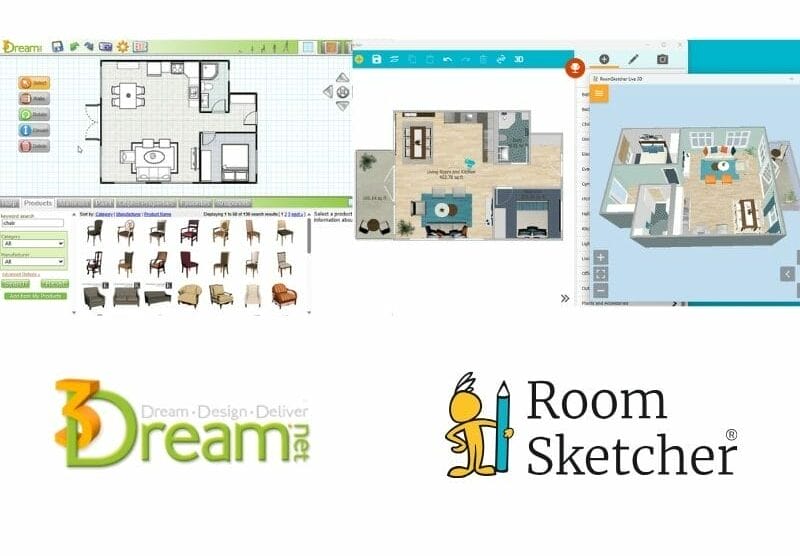
3Dream is a web-based room planning tool designed primarily for interior designers, decorators, and furniture retailers. You can draw rooms in 2D and then switch to a 3D view to apply finishes, lighting, and furniture. To start a project in 3Dream, you either draw from scratch or open a basic room template. The focus is clearly on room-level interior design rather than full floor plan creation.
In practice, this approach comes with limitations. For example, door placement required selecting a specific swing in advance, and rotating objects behaved inconsistently. You can't view 2D and 3D simultaneously, and editing in 3D often causes objects to move when you try to adjust the view. Output options are limited to basic snapshots of rooms or simple 2D or 3D views. The interface feels dated, and several onboarding and "What's New" videos are many years old, giving the impression of infrequent updates.
RoomSketcher
RoomSketcher helps anyone easily create polished 2D and 3D floor plans. It's well-suited for real estate professionals, property managers, contractors, homeowners, and interior designers who need presentation-ready results.
The software offers more ways to start a project, including drawing manually, using templates, scanning an existing space with iOS LiDAR, or converting a blueprint with AI Convert. These options significantly reduce setup time, especially when working from existing plans. The interface is intuitive and efficient, with clear guidelines for placing walls, simple on-screen controls for changing door swing and resizing objects, and Live 3D that lets you design in 2D while seeing results in 3D instantly.
RoomSketcher also offers a broader range of outputs, including professional 2D and 3D Floor Plans, high-quality 3D Photos, 360 Views, and instant Live 3D walkthroughs. Its comprehensive Help Center makes it easy to find answers, whereas 3Dream's more limited documentation makes even basic tasks, such as adjusting door swing or exporting floor plans, difficult to locate.
💻Platform Availability:
- 3Dream: Browser-based and requires a stable internet connection
- RoomSketcher: Downloadable desktop app for Windows and Mac, plus Apple iOS and Android tablet apps
2D Floor Plans
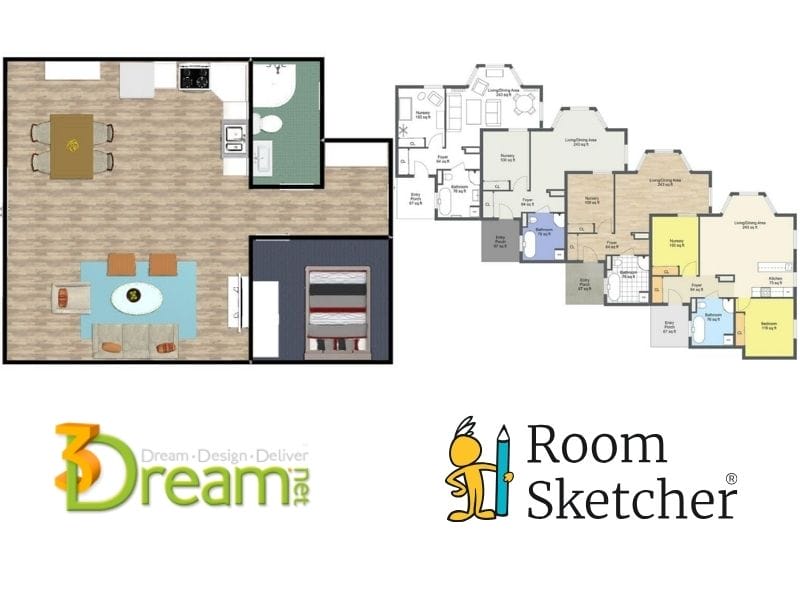
In 3Dream, you can draw basic 2D floor plans and place furniture, but the tool lacks many features needed for professional floor plan creation. Floor plans can be viewed in black-and-white or in color with materials, but many helpful 2D floor plan drawing aids are missing.
There are no guides or measurement helpers for placing interior walls, and we couldn't find a way to display room names and measurements. Once complete, floor plans are essentially captured as screenshots. Exports are JPG files sized to your screen, which typically require manual cropping to produce a clean final image.
With RoomSketcher, you can adjust wall and furniture colors, automatically add measurements in feet or meters, include room names and labels, and easily show or hide furniture to create different plan views.
RoomSketcher also supports branded templates with logos and consistent styling across projects. When finished, you can export high-resolution 2D Floor Plans as JPGs or PDFs, ready to print or digital use.
3D Floor Plans
Both 3Dream and RoomSketcher automatically generate a 3D floor plan as you create your 2D layout, but the level of control and output quality differ significantly between the two tools.
3Dream supports basic 3D floor plans, allowing you to apply paint, flooring, and materials to rooms and furniture. However, the workflow is limited for professional use. Simple tasks required multiple steps and manual adjustments. As with its 2D output, finished 3D floor plans are effectively screenshots of the workspace. Exports are JPG files sized to your screen, which typically require cropping to achieve a clean, presentation-ready result.
RoomSketcher makes it easy to create polished, professional 3D Floor Plans with full creative control. You can choose from a wide range of materials, including hardwood, tile, and stone; customize wall finishes and furniture styles; color wall tops, and add room labels, annotations, and orientation compasses.
Camera angles and perspectives are easy to adjust, and custom 3D style settings can be saved to ensure consistent branding across projects. High-resolution JPG and PDF exports are clean and ready for print or digital presentations, no extra editing required.
Measurements and Calculations
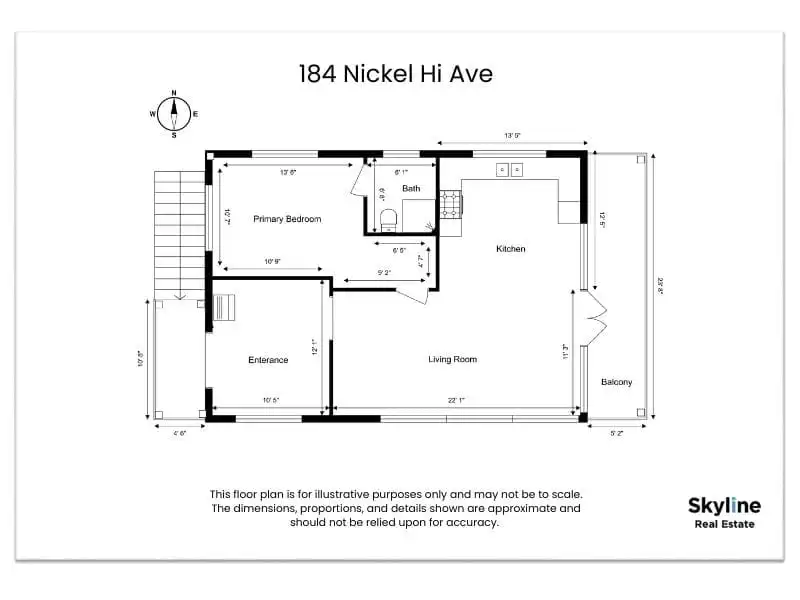
In 3Dream, distance measurements appear while you're actively drawing, but we couldn't find a way to display those measurements on the finished floor plan itself.
RoomSketcher offers robust and flexible measurement tools. Room areas are automatically calculated, with the option to show or hide them on floor plans, making it easy to create both clean and detailed versions. Measurement Wizard lets you quickly add multiple dimensions at once, such as room length and width, or exterior wall measurements.
RoomSketcher also includes a Total Area Calculator that supports six industry-standard measurement methods, including Grand Total Area (GTA), Total Living Area (TLA), and Gross Internal Area (GIA), making it well-suited for professional and real estate use.
3D Photos and Virtual Tours
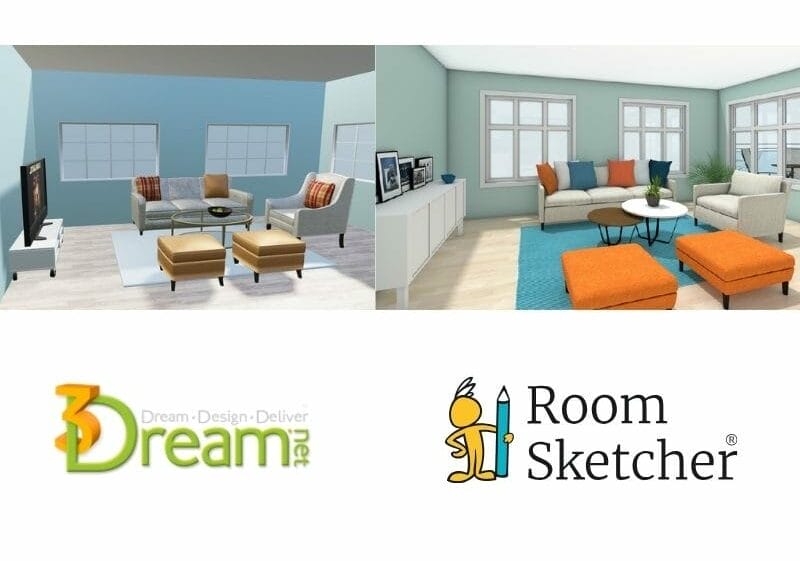
3D Photos
With 3Dream, floor plans are captured as full-screen snapshots, meaning output resolution depends on the screen size. 3Dream also has a ViewHQ feature that lets you capture a slightly higher-quality image than their standard snapshot. We found the ViewHQ tool challenging to use. You have to launch the tool, then work in a different UI. It does let you adjust the environment, exposure, blur, shadows, etc., but for us, the final quality was lacking, given all the work.
RoomSketcher takes a faster, more automated approach. You can adjust camera settings, preview with snapshots, and generate high-resolution 3D Photos optimized for web and on-screen use in just a few clicks. With these 3D Photos, you can generate high-quality images of rooms and entire home designs. This is ideal for interior design, home staging, and real estate projects.
360 Views
RoomSketcher's 360 Views let you turn in a room as if you were actually in the space, allowing you to turn, look up, and down, and zoom in or out. These views are automatically created and compatible across devices, including Windows, Mac, iPad, Android tablets, and smartphones.
We couldn't find a similar option in 3Dream.
Live 3D
RoomSketcher's Live 3D provides an interactive virtual walkthrough, letting you fly over the floor plan for a complete overview or move through rooms as if you were physically there.
3Dream's QR code project link offers a similar experience, allowing viewers to view a project from above or navigate through the rooms using the arrow keys.
How Do I Share or Export Projects?
In 3Dream, when taking a snapshot, you can also access a QR code and link to share or post to your social media accounts. Recipients will be able to open and explore the project in a browser.
RoomSketcher automatically creates a Project Presentation for each project. Simply email the Project Presentation link or post it on your social media accounts. Your recipients see a presentation that includes any floor plans you have generated, Live 3D, 3D Photos, and the furniture used in the project. If the person you are sharing your project with has the RoomSketcher app installed, they can open a copy of your project in RoomSketcher and edit the design.
Can I Order Floor Plans to Be Drawn for Me?
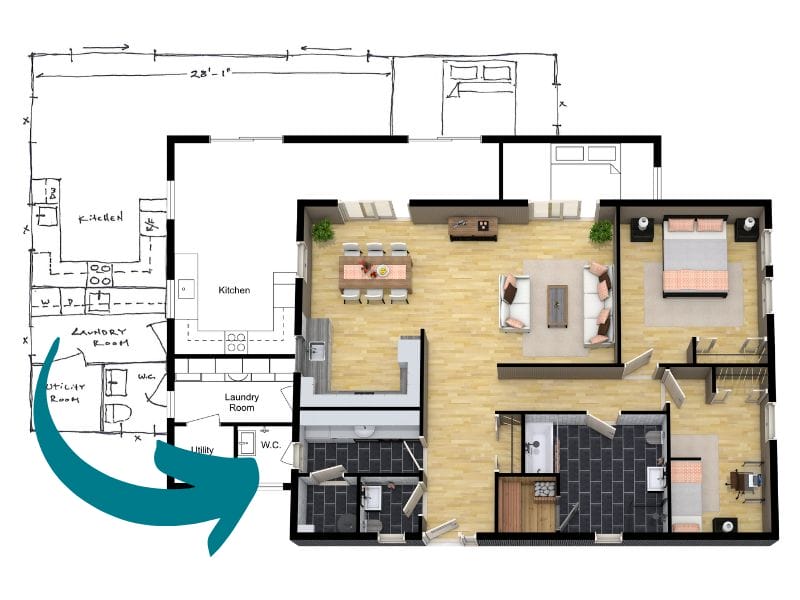
If you need professional floor plans on a tight deadline, a redraw service can be a great option. RoomSketcher offers a redraw service that's available to customers of all sizes. You can submit a blueprint or sketch and receive editable, professional-quality 2D and 3D Floor Plans by the next business day.
Unlike static deliverables, the finished project remains fully editable. This means you can make last-minute adjustments and regenerate floor plans without starting over or paying for a new order. For those working under time pressure, this service is a reliable way to quickly get accurate, presentation-ready floor plans.
We didn't find an ordering service from 3Dream.
Which Floor Plan Software Should You Choose?
If your needs are limited to basic room-level interior visualization and occasional snapshots, 3Dream may work as a lightweight option. However, its dated interface, limited outputs, and cumbersome workflows make it less suitable for creating polished, professional floor plans.
RoomSketcher is the better choice for anyone who needs accurate, presentation-ready 2D and 3D floor plans and high-quality visuals with minimal effort.
With intuitive tools and powerful measurement and calculation features, RoomSketcher makes every project easier to manage. Multiple ways to start a project, beautiful visual outputs, and strong customer support make it a complete, efficient, and cost-effective solution for professionals and homeowners alike.
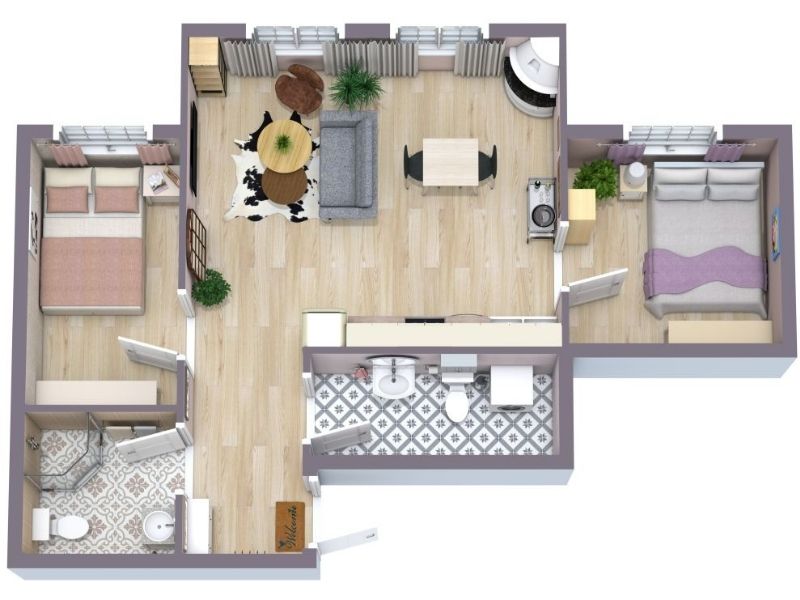
Why People Prefer RoomSketcher
- Intuitive and easy-to-use
- Scan, AI Convert, Draw, Trace, or Order Floor Plans
- Unmatched 2D and 3D Floor Plan customization
- Friendly customer support
- Flexible pay-as-you-go pricing
Ready to try it yourself? Create a free RoomSketcher account today and explore the features. Upgrade anytime to unlock 2D and 3D Floor Plans, 3D Photos, 360 Views, and Live 3D.
With a 30-day money-back guarantee, you can get started risk-free.
Frequently Asked Questions (FAQ)
The biggest difference is depth and output quality. 3Dream focuses on room-level interior concepts, while RoomSketcher delivers complete, professional 2D and 3D Floor Plans, measurements, and high-quality visuals.
With RoomSketcher, you get:
- Downloadable 2D Floor Plans in JPG and PDF
- Customizable 3D Floor Plans
- Automatic measurements and area calculations
- High-resolution 3D Photos
- 360 Views and Live 3D walkthroughs
- The option to Order Floor Plans
3Dream works for quick concepts, but RoomSketcher is built for professional results.
Yes, you absolutely can!
RoomSketcher is designed to be intuitive and easy to learn. You can:
- Draw from scratch
- Use templates
- Scan a space with iOS LiDAR
- Convert a blueprint using AI Convert
- Trace over an existing floor plan
Clear drawing guides, automatic measurements, and instant Live 3D make it approachable for beginners while still being powerful enough for professionals.
Yes, with RoomSketcher, you can Order Floor Plans.
You simply upload a sketch or blueprint, and professional illustrators redraw it into editable 2D and 3D Floor Plans. You'll receive your project by the next business day.
The final project remains fully editable. That means you can make changes and regenerate outputs without having to start over.
Recommended Reads

Top 9 Floor Plan Software Tools for 3D Floor Plans
3D floor plans turn simple layouts into realistic, easy-to-understand visual experiences. They help people explore design ideas and instantly understand a space. Here's a list of the best floor plan software to use for your 3D floor plans.
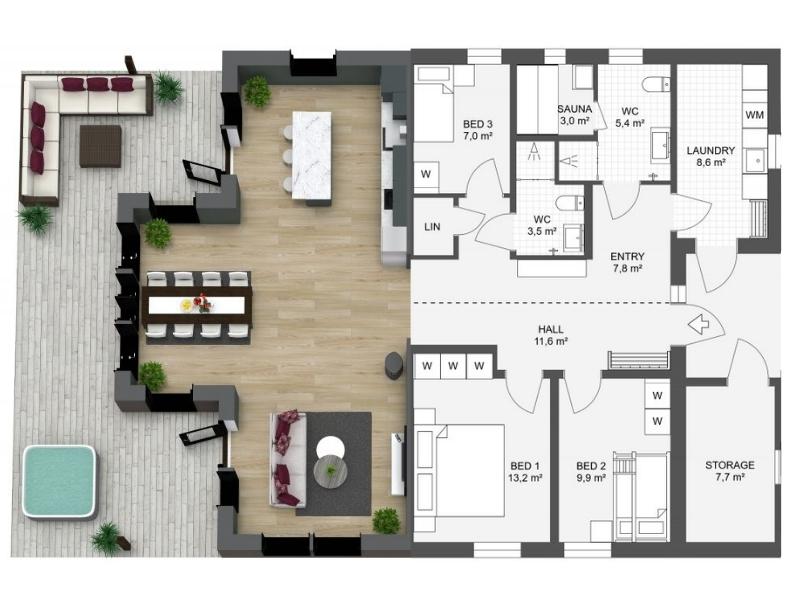
The 8 Best Floor Plan Software Tools (2026 Update)
The market is flooded with floor plan software options, each promising to make your processes easier and more efficient. We've put the top tools to the test!
Foyr Neo vs. RoomSketcher: Comparing Workflows and Results
While both Foyr Neo and RoomSketcher support 2D and 3D layouts, they are designed for different use cases. This comparison looks at how each platform performs, where they differ, and which types of users they suit best.