Choosing Between Home Planner and RoomSketcher? Read This First
Choosing between Home Planner and RoomSketcher for your floor plan needs? This article will help you decide which one you should use for your floor plan projects.
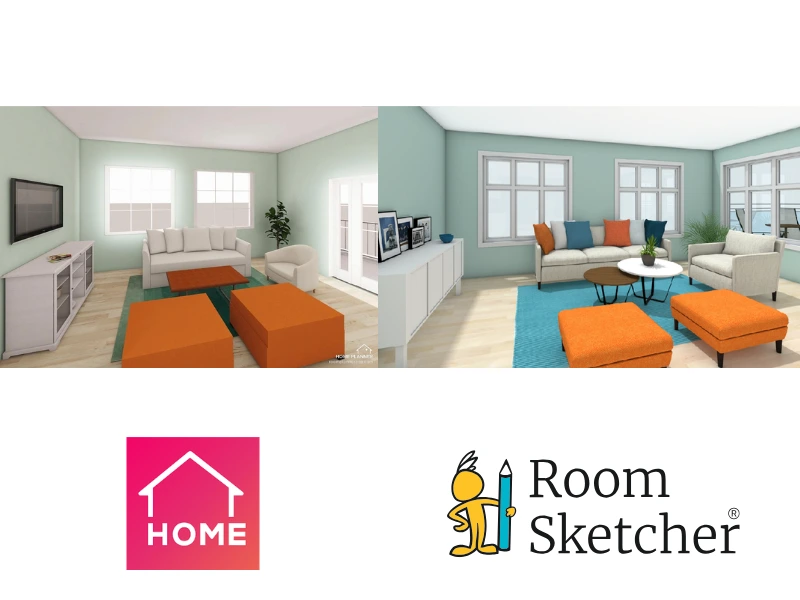

✍️Article Summary: Home Planner works well for decorating rooms and visualizing interior design ideas. RoomSketcher offers a more complete solution for creating professional floor plans. Its flexible workflow, advanced measurement tools, 3D visualization, and customizable floor plans make it well-suited for real estate, interior design, and property professionals.
Choosing the right floor plan software can save you time and frustration. We've tested both Home Planner (formerly Room Planner) and RoomSketcher to see how they compare in real use.
In this guide, we break down where each tool performs well, where they fall short, and which one makes the most sense depending on your needs.
Side-by-Side Comparison
| Feature | Home Planner | RoomSketcher |
|---|---|---|
| Capture Spaces | Yes - iOS LiDAR | Yes - iOS LiDAR |
| Draw Floor Plans | Yes | Yes |
| Order Floor Plans | - | Yes |
| Trace Over an Existing Floor Plan | Yes | Yes |
| Convert an Existing Floor Plan | - | Yes |
| Edit Floor Plans | Yes | Yes |
| 2D Floor Plans | Yes | Yes |
| 3D Floor Plans | Yes | Yes |
| 3D Visualization | Yes | Yes |
| 3D Walkthrough | Yes | Yes |
| Site Plans | Yes | Yes |
| Measurements | Yes | Yes |
| Total Area Calculations | Yes | Yes |
| Customization of Floor Plans | - | Yes |
| Branded Floor Plans | - | Yes |
| Customizable Templates | - | Yes |
| Cloud Storage | Yes | Yes |
| Furniture Library | Yes | Yes |
| 2D Symbols | - | Yes |
| Pricing | Pro, Pro+, Pro++ | Free, Pro, Team |
| Customer Support | Video Tutorials, FAQ, Email, Search | Chat, Email, Help Center, 1:1 Training for Business Users |
| Learning Material | Tutorials | Tutorials, Webinars |
| Sharing | Share project link, images, share floor plans, floor plan statistics, PDF, 3ds Max | Project link, walkthroughs, share floor plans and images as PDF, JPG, PNG |
Who Uses Home Planner vs Who Uses RoomSketcher?
Home Planner
- Interior designers
- Remodelers
- Real estate professionals
RoomSketcher
- Real estate professionals
- Home builders
- Interior designers
- Remodelers
- Anyone looking for professional-quality results with less hassle
How Do They Work?
Both RoomSketcher and Home Planner let you create floor plans in 2D and 3D. At a basic level, you can:
- Draw from scratch or trace over an existing sketch
- Apply materials like tile, wood, and paint
- Furnish spaces with fixtures, furniture, and appliances
- View and export floor plans in both 2D and 3D
- Capture a space with LiDAR
From there, the tools take different approaches. RoomSketcher is built specifically for creating professional 2D and 3D floor plans. There are multiple ways to get started on a project, making the experience suitable for any workflow.
You can draw a floor plan yourself, capture an existing space with LiDAR, trace a blueprint or a sketch, or order floor plans through the redraw service. You can also use AI Convert to upload a computer-drawn floor plan and convert it into an editable floor plan.
The interface drawing process is easy, with clear tools for structure, measurements, and layout. One key advantage is the ability to view your project in 2D and 3D simultaneously. In Home Planner, you need to switch between modes. This side-by-side view in RoomSketcher makes it easy to understand how changes affect the space, speeding up decision-making.
Home Planner, on the other hand, is primarily focused on decorating individual rooms. Its interface centers on visual inspiration through a "Design Feed" and is geared toward styling rather than building detailed, multi-room floor plans.
💻Platform Availability:
- RoomSketcher: Desktop app for Windows and Mac, plus iPad and Android tablets
- Home Planner: Desktop app for Windows and Mac distributed via Steam, plus iPad and Android tablets
The Home Planner app appears to be designed for mobile devices and then adapted for desktops. Several user reviews note that Home Planner's desktop version feels like a mobile app adapted for larger screens. Some report issues on desktop, particularly with larger or more detailed projects.
Order Floor Plans
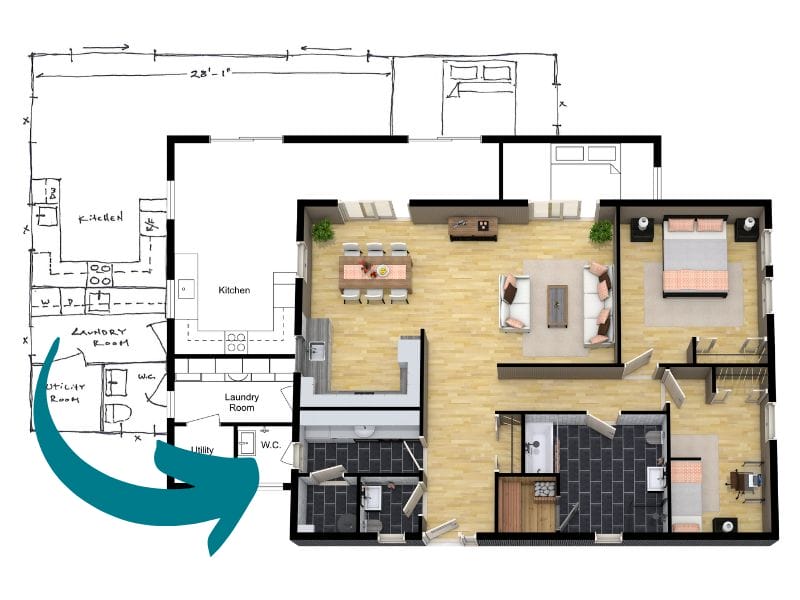
If you need finished floor plans quickly, a redraw service can save time and reduce back-and-forth. With RoomSketcher's Order Floor Plans feature, you submit a blueprint or sketch and receive professionally redrawn 2D and 3D Floor Plans by the next business day. The project is delivered as a fully editable file, so you can make changes yourself if needed.
What you get with one order:
- Both 2D and 3D Floor Plans from the same project
- Furnished or unfurnished layouts, based on your sketch
- A fully editable project you can update in the app for 30 days, with no extra fees
- The ability to generate Live 3D walkthroughs, 360 Views, and 3D Photos from the same project
Home Planner does not offer a comparable redraw or order-based floor plan service.
2D Floor Plans
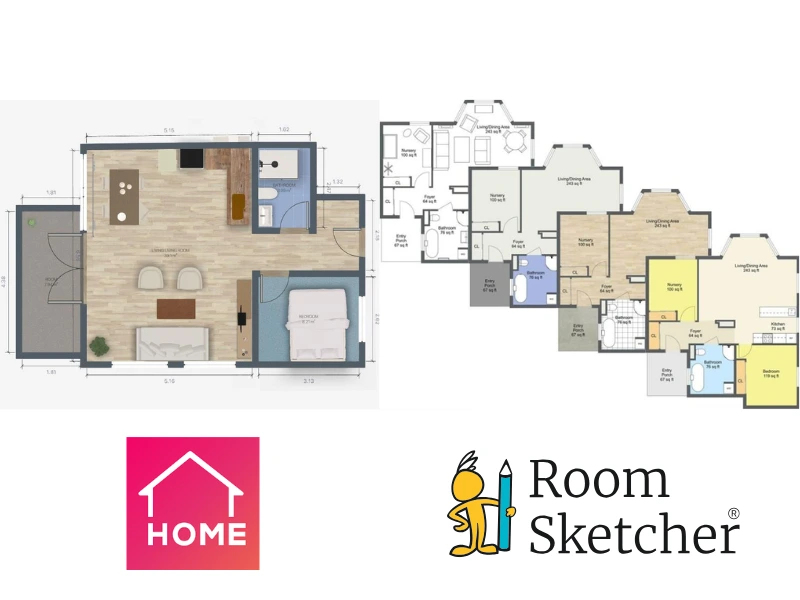
In Home Planner, 2D floor plans are generated by clicking Take a Photo. This produces one of the three static outputs, with limited customization options:
- Full Colors Screenshot: shows finishes and furniture
- Real Estate Floor Plan: black and white, with room names, areas, and furniture
- Architectural Floor Plan: black and white, with more detailed dimensions
These views are fixed. You cannot adjust colors, labels, line styles, or layout beyond the preset formats.
RoomSketcher approaches 2D Floor Plans differently. Customization is built into the workflow, giving you control over how the plan looks and what it communicates. You can:
- Create color-coded floor plans using automatic room type colors, such as blue for bathrooms
- Customize wall, window, and furniture outline colors, then save templates for consistent branding
- Create multiple versions of the same plan, including unfurnished, partially furnished, or fully staged
- Adjust fonts, label placement, room names, and room sizes
- Divide open-plan layouts into clearly labeled zones, such as a kitchen or dining area
- Apply advanced measurement settings to match professional or regional standards
3D Floor Plans
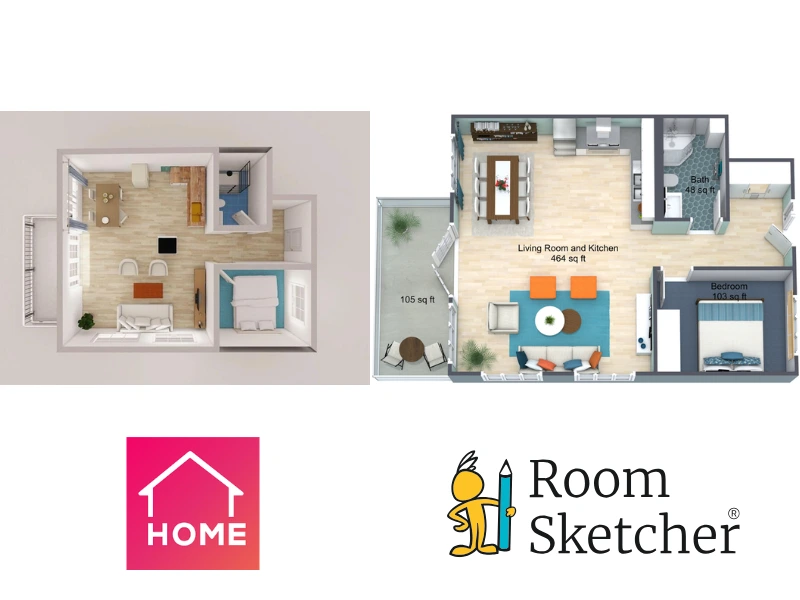
With both tools, you can develop a 3D floor plan alongside your 2D floor plan. Each tool offers a library of materials, furniture, and accessories for your designs. Rendering a 3D floor plan takes a few minutes in both programs.
In Home Planner, creating a 3D floor plan involves clicking Take a Photo. You then get a few options:
- Adjust lighting (cloudy, morning, daytime, evening)
- Adjust the image's aspect ratio
- Drag to adjust rotation and viewing angle
Customization is limited. We couldn't fine-tune the details the way we wanted, and one furniture item shifted positions in 3D (though it remained correct in 2D).
RoomSketcher offers more flexibility with 3D Floor Plans:
- Change the color on the wall tops and other details
- Save settings, including rotation, angle, and styling, as templates for consistent results
- Show or hide furniture to generate multiple versions (unfurnished, staged, or fully furnished)
- Export floor plans in JPG or PDF, optimized for presentations and marketing
3D Visualization
3D Photos
Both RoomSketcher and Home Planner let you create realistic 3D images for presentations, visual staging, or marketing spaces that haven't been built yet. The main difference is how the workflow is handled.
With RoomSketcher, creating 3D Photos is designed to be quick and repeatable. You place a camera in your project, use a low-resolution preview to frame the view, and generate a high-resolution image with one click. Lighting, materials, and shadows are handled automatically, making it easy to achieve consistent, presentation-ready results without manual adjustments.
Home Planner takes a more hands-on approach. You work directly in 3D mode, manually adjust the camera angle and perspective, and fine-tune settings such as lighting and color before capturing the image. This gives you more direct control, but it also means each image takes longer to set up, especially if you need to generate multiple views.
360 Views and Virtual Tours
Both RoomSketcher and Home Planner let you create high-resolution 360 Views from points inside the floor plan. Viewers can look around in all directions, creating an immersive way to present a space and understand the layout.
When it comes to virtual walkthroughs, the experience differs.
In RoomSketcher, you can explore the project interactively using Flyover and Camera modes. This allows you or your clients to move freely from room to room, view the layout from different angles, and understand how spaces connect. The walkthrough experience is designed to be shared and explored, not just viewed.
In Home Planner, virtual exploration happens inside the editor using 3D mode and 3D Walk View. You can move through the floor plan you are actively working on, but the experience is more focused on editing than presenting or sharing the walkthrough with others.
Measurement and Total Area Calculations
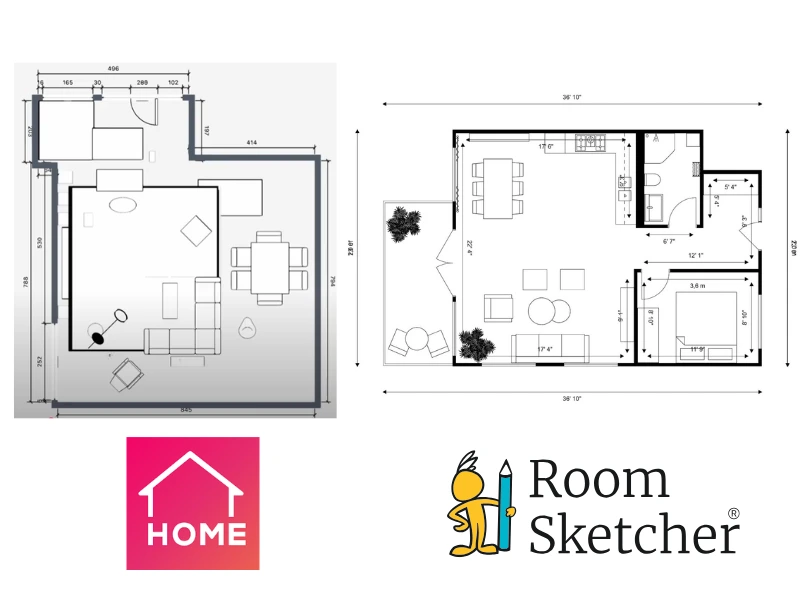
Home Planner supports basic measurements in 2D floor plans, including room area in square feet or square meters, as well as wall and window lengths. Based on our review of the interface and available help documentation, measurement styling appears to be fixed. We did not find options to adjust font size, placement, or visibility directly in the tool.
RoomSketcher offers more advanced and flexible measurement tools. You can display:
- Room area, such as 100 sq ft
- Exact room dimensions
- Exterior wall lengths
- Distances between any two objects
Measurements are calculated automatically and can be customized for clarity. You can change font size, color, and placement, and choose exactly which measurements are shown or hidden on each plan.
For projects that require standardized area reporting, RoomSketcher also includes a Total Area Calculator. This tool analyzes your layout and six professional area standards, including Grand Total Area (GTA), Total Living Area (TLA), and Gross Internal Area (GIA).
Pricing
RoomSketcher offers several pricing tiers, outlined on its Plans and Pricing page. These include a free account, pay-as-you-go options, and monthly or yearly subscriptions. Subscriptions can be managed and canceled through the website and remain active until the end of the current billing period.
Downloading the Home Planner Windows app redirected us to Steam, where the only option displayed was a Pro subscription, with no indication of whether it was a monthly or yearly fee. On iOS, the situation was even more confusing. Prices are displayed as "per week," but it billed in longer blocks (such as six months). Users might think they're signing up for a weekly plan, only to discover they're locked into a semi-annual subscription.
Why People Prefer RoomSketcher
- Intuitive and easy-to-use
- Capture, Convert, Draw, Trace, or Order Floor Plans
- Unmatched 2D and 3D Floor Plan customization
- Friendly customer support
- Flexible pay-as-you-go pricing
Ready to try it yourself? Create a free RoomSketcher account today and explore the features. Upgrade anytime to unlock 2D and 3D Floor Plans, 3D Photos, 360 Views, and Live 3D.
With a 30-day money-back guarantee, you can get started risk-free.
Recommended Reads
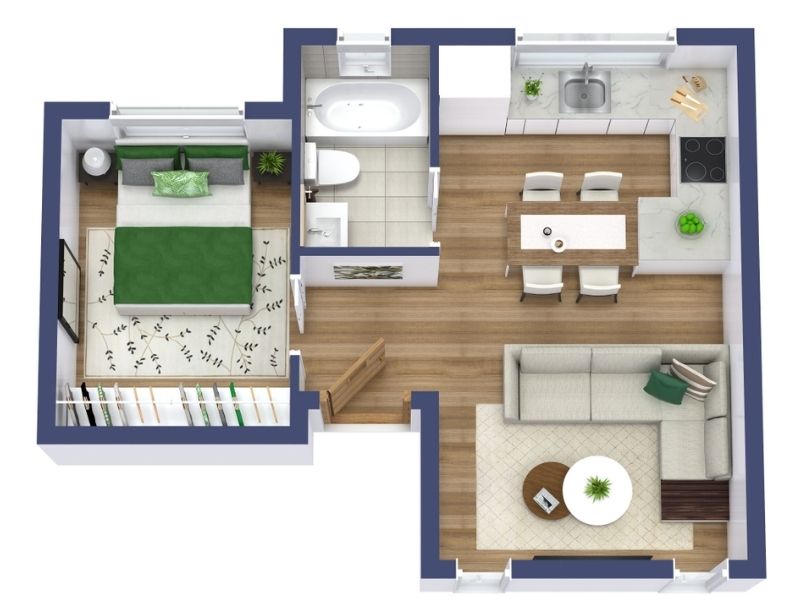
Tiny Houses: Smart Design Ideas for Small-Space Living
Tiny houses make it possible to live comfortably in a small footprint when the design is done right. With smart planning, you can turn limited square footage into a functional home.

Top 9 Floor Plan Software Tools for 3D Floor Plans
3D floor plans turn simple layouts into realistic, easy-to-understand visual experiences. They help people explore design ideas and instantly understand a space. Here's a list of the best floor plan software to use for your 3D floor plans.
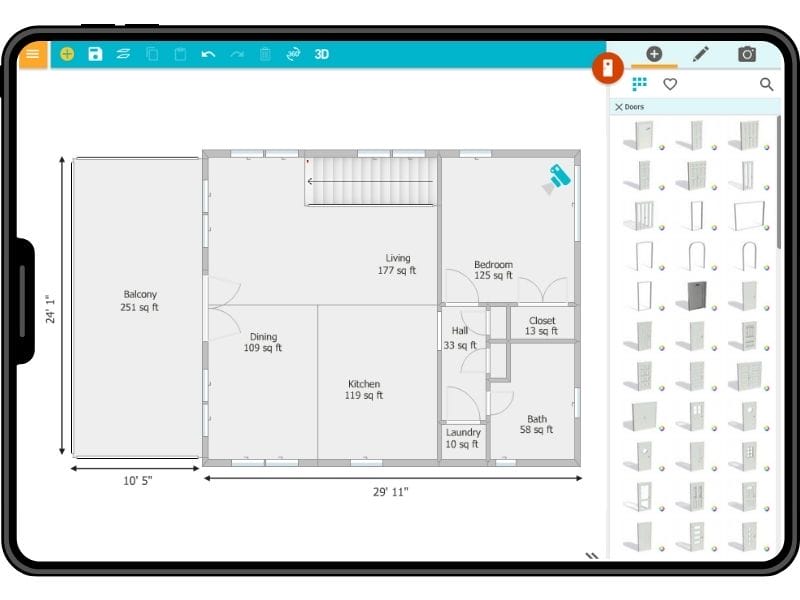
The 8 Best Floor Plan Software for iPad and Tablet
Being able to work from anywhere when working on a floor plan project is important for the process. But which floor plan software should you choose?