Trace a Sketch or Low-Quality Floor Plan
Turn a hand-drawn sketch, old blueprint, or blurry scan into an editable project. Upload your plan to RoomSketcher, trace the layout, then edit and share the finished floor plan.
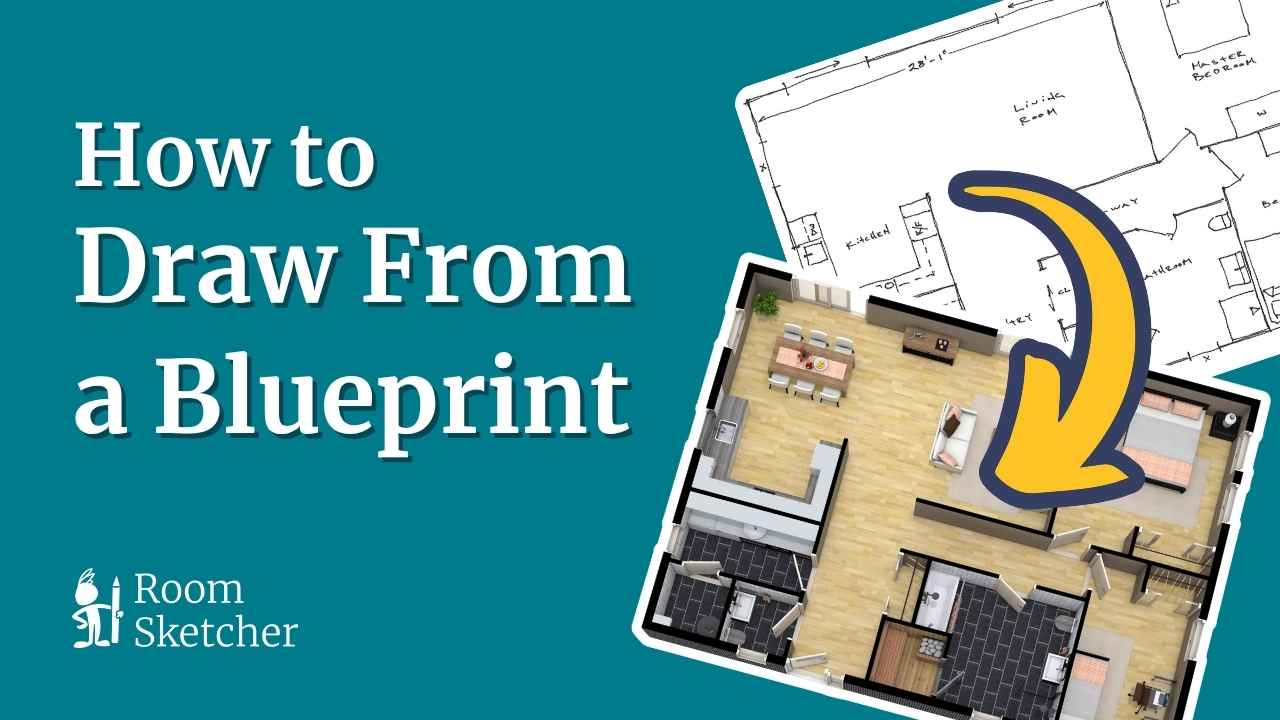





Turn an Old Floor Plan Into an Editable Layout
Old drawings and low-quality scans can be hard to read, edit, and share.
Upload the original to RoomSketcher, then trace the layout to create a clean, editable digital floor plan.
- Keep an editable version you can update when the layout changes
- Create clear floor plans for property listings and presentations
- Share the layout with clients, contractors, or colleagues
Convert a Floor Plan Automatically
Have a clear, computer-generated floor plan?
Upload the PDF, image, or scan, then use AI Convert to turn it into an editable RoomSketcher project in seconds.
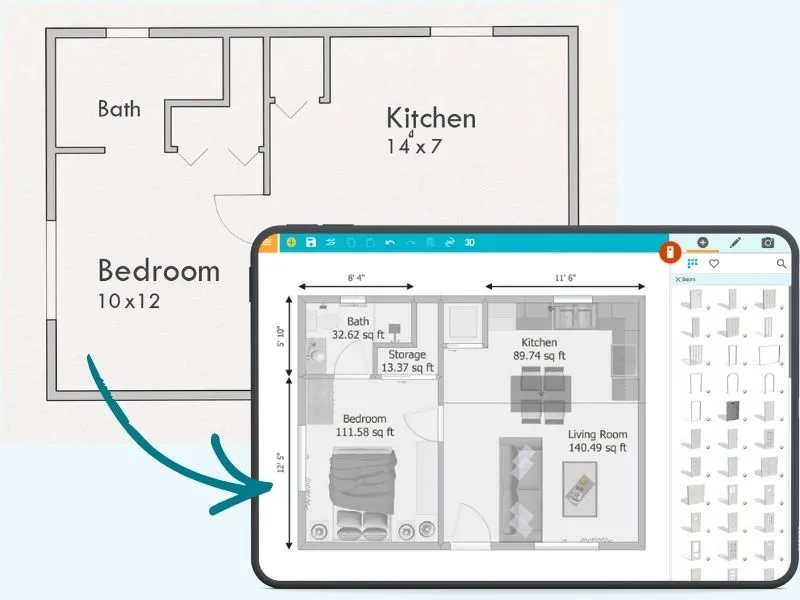
How to Trace a Floor Plan

STEP 1:
Upload and trace your floor plan
Upload a hand-drawn sketch, blueprint, scanned drawing, or photo in JPG, PNG, or PDF format.
Set the scale using a known wall measurement, then trace the walls directly over the original plan.
Show or hide the blueprint as you work so you can compare your drawing with the source and keep the layout accurate.
STEP 2:
Edit the Layout
Once the floor plan is traced, you can update the layout whenever you need to.
Move walls, add doors and windows, change room names, adjust dimensions, or furnish the space with fixtures and furniture.
Because the floor plan is editable, you can keep refining it as the project changes.
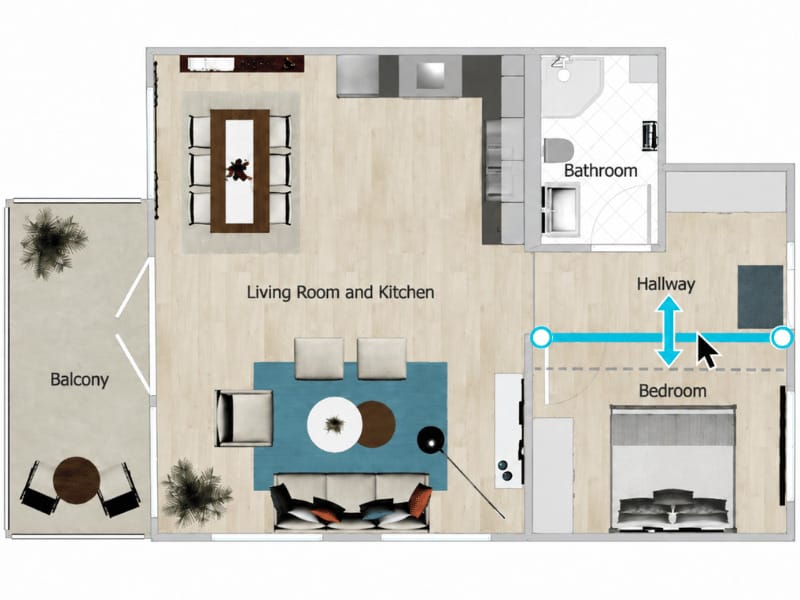
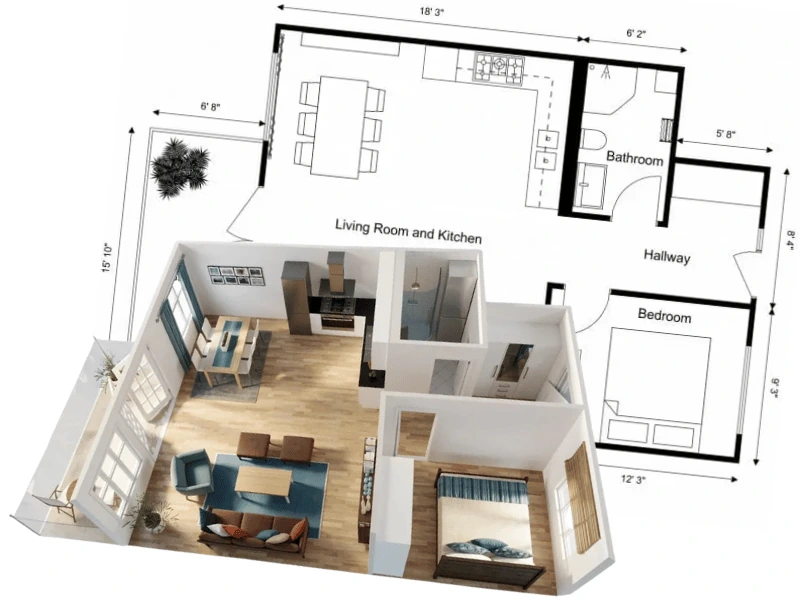
STEP 3:
Generate and share your floor plans
When the layout is ready, generate 2D and 3D Floor Plans from your project.
Use them for renovation planning, property presentations, client communication, or simply to keep a clear digital record of the space.
If the layout changes later, just update the project and generate a new floor plan.
Used by Professionals and Homeowners
"RoomSketcher has the great ability to import an existing PDF (or jpg) floorplan with known dimensions and then trace over it to recreate your own matching floorplan."
"Easy to overlay on an existing blueprint or rough sketch."
"RoomSketcher has a lot of user-friendly features and options. The blueprint upload option to be able to trace floorplans, the floorplan generators and 360 view generators, the options of adding your logos and disclaimers on plans, and the adding measurement tools are some of my favorites."
Frequently Asked Questions
No. You can upload your existing plan, set the scale, then trace the walls and add doors, windows, fixtures, and furniture in the RoomSketcher app.
Yes! Take a photo of the plan from directly above, with the paper lying flat, then upload it to RoomSketcher and use it as your tracing guide.
Yes you can. Simply add a new level to your project, then upload the blueprint for that floor and trace it separately.
Yes! Once traced, the floor plan is part of your RoomSketcher project, so you can update walls, doors, windows, room names, materials, furniture, and other details.
Accuracy depends on how well you set the scale and follow the original layout. Use a known wall measurement to set the scale, then trace directly over the uploaded blueprint, image, or sketch.
For the best results, start with a clear reference and at least one reliable measurement.
Related Articles
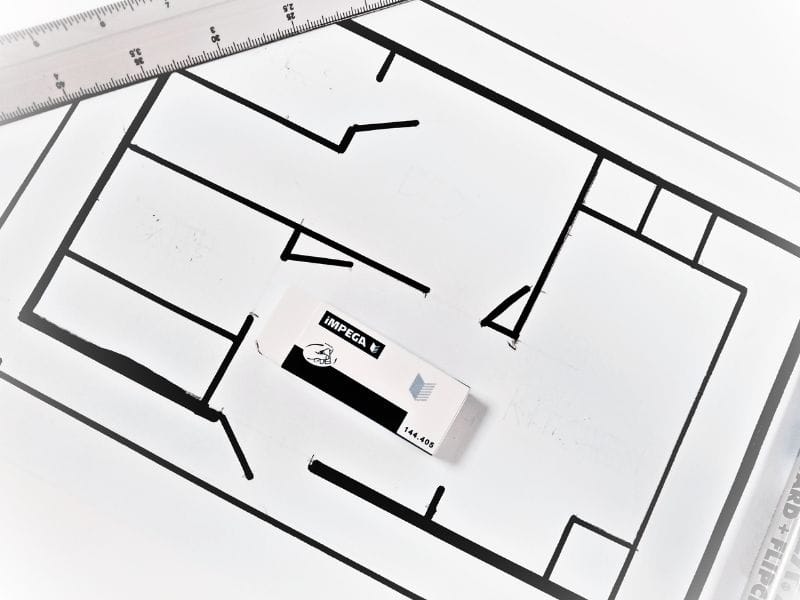
5 Tips on How to Draw a Blueprint by Hand
How do you draw a blueprint by hand quickly and efficiently? Discover the top tips on how to create an accurate blueprint using just pen, paper, and a laser measurer.

The Ultimate Guide to Blueprint Symbols
Blueprint symbols might look complex, but they're actually a straightforward way to communicate design ideas. Let's take a look at common symbols and how they're used.
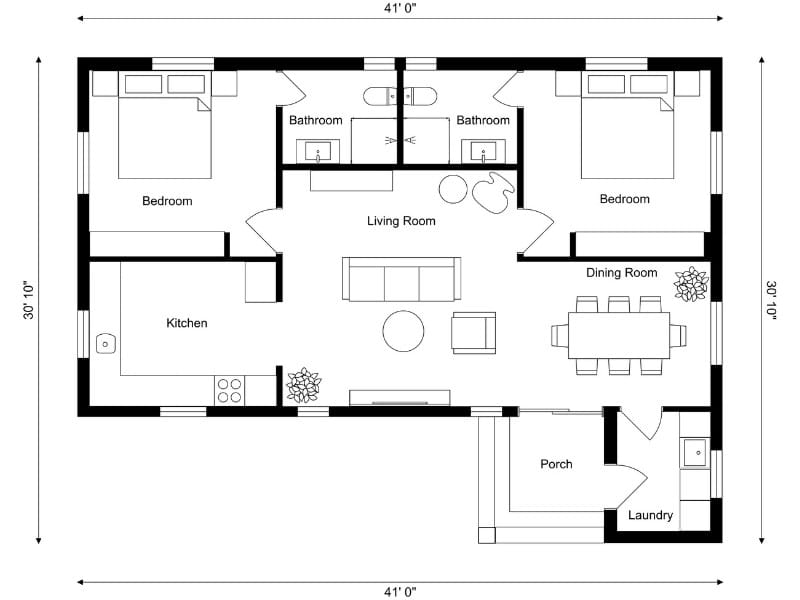
How to Create a Floor Plan (5 Easy Methods)
The easiest way to create a floor plan depends on your starting point. Sometimes you’re working with an empty space. Other times, you already have a sketch, PDF, or old floor plan you want to reuse. Learn about the five ways you can create a floor plan with RoomSketcher.
Ready to Upload Your Floor Plan?
Upload your floor plan and turn it into an editable RoomSketcher project.