How to Create a Floor Plan (5 Easy Methods)
The easiest way to create a floor plan depends on your starting point. Sometimes you’re working with an empty space. Other times, you already have a sketch, PDF, or old floor plan you want to reuse.
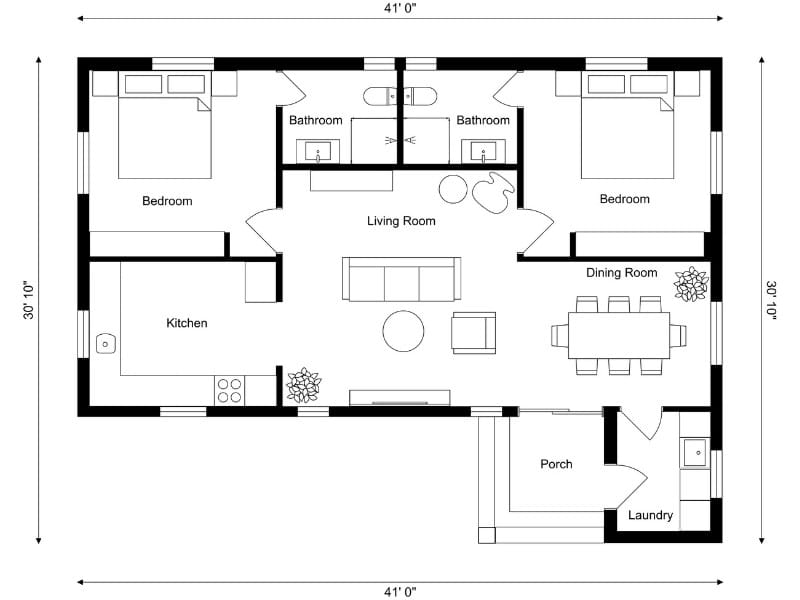

Quick summary:
There are five common ways to create a floor plan: capturing a space, drawing from scratch, converting an existing plan, tracing over a plan manually, or ordering a professional redraw. The easiest option depends on whether you already have a floor plan and how much work you want to do yourself.
Some projects start with an empty space you need to measure and capture. Others begin with an existing floor plan that just needs updating or digitizing.
That’s why there are several ways to create a floor plan. In some cases, it makes sense to capture the space yourself. In others, reusing or converting an existing plan is faster and more practical.
Knowing where you’re starting makes it much easier to choose the right approach.
If You Don’t Have a Floor Plan Yet
Capture: best for fast floor plans from existing properties
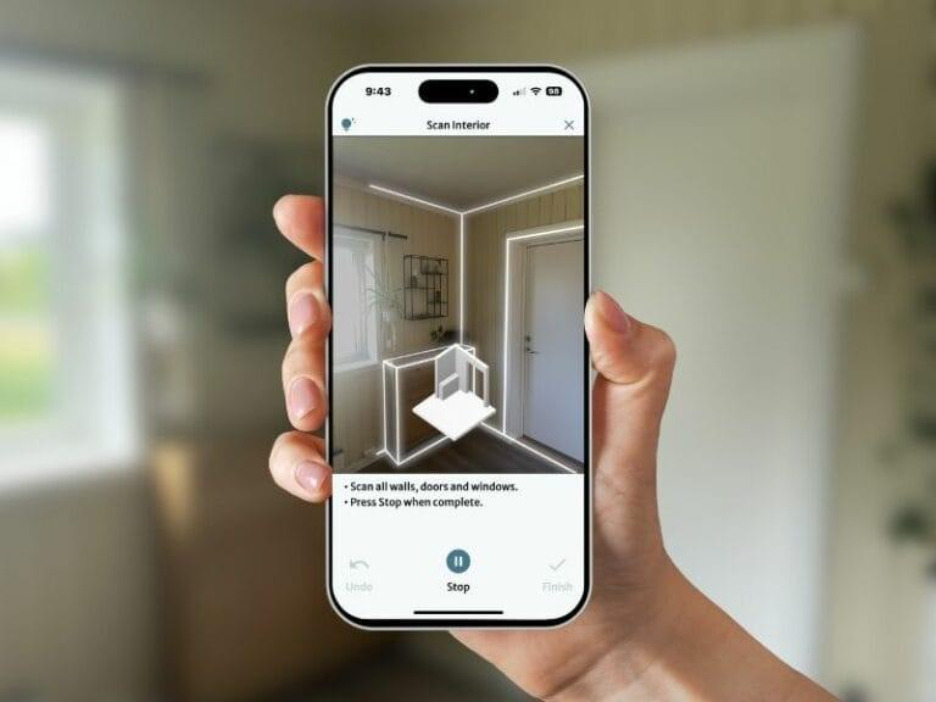
Sometimes the easiest way to create a floor plan is to start inside the property itself.
Instead of measuring every wall by hand, you walk through the space with your device and capture the layout as you go. It’s a fast way to create an accurate starting point without spending hours taking notes.
This approach works best when you need to capture an existing space quickly and still want reliable measurements.
A good fit when:
- You can visit the property in person
- You have an iPhone or iPad with LiDAR
- Measuring everything manually would take too long
With RoomSketcher's FloorCapture, you use an iPhone or iPad with LiDAR to capture the space room by room. The capture usually takes five to 10 minutes, and AI turns it into an editable floor plan you can continue working on.
Draw: best for full creative freedom
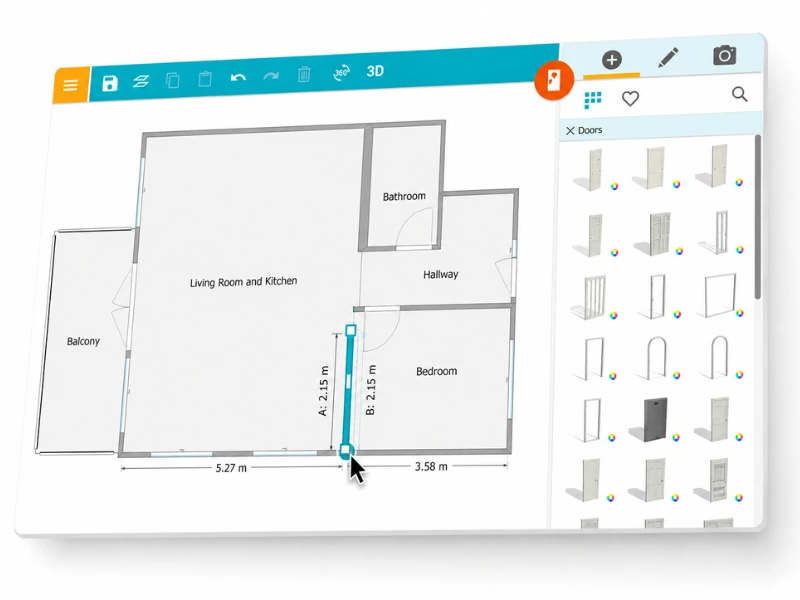
Drawing from scratch gives you full control over the layout from the beginning. It’s a common choice for renovations, home additions, and new projects where the space hasn’t been finalized yet.
Because you’re building the layout yourself, it’s easy to test ideas, move rooms around, and experiment with different configurations as the plan develops.
A good fit when:
- You’re planning renovations or layout changes
- The space doesn’t exist yet
- You want complete control over the design
With RoomSketcher, you start with a blank project and build the floor plan step by step. Walls, room sizes, and openings can all be adjusted as you go, making it easy to refine the layout over time.
If You Already Have a Floor Plan
AI Convert: best for digitizing and editing existing
floor plans
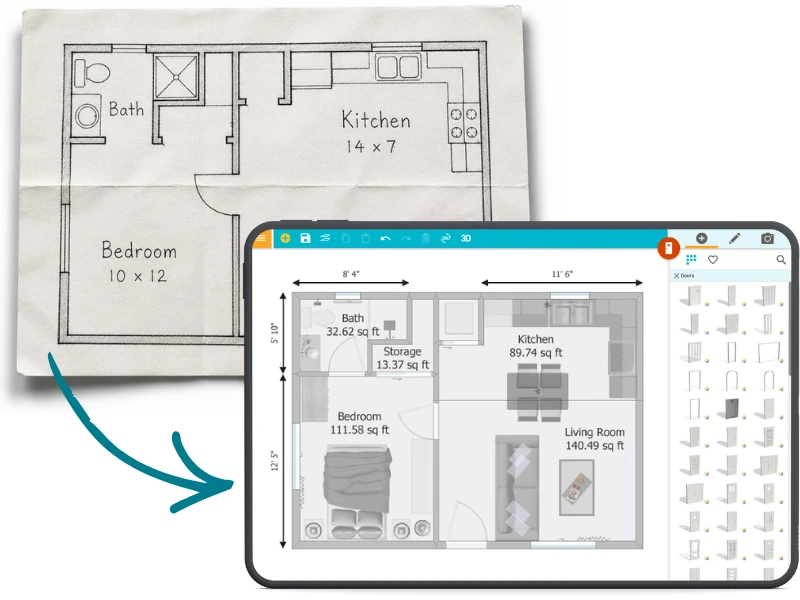
If you already have a floor plan, redrawing it manually can take more time than the actual edits you want to make.
AI Convert speeds up the process by turning an existing floor plan into an editable project automatically. Instead of tracing walls yourself, you upload the plan and let AI map out the layout for you.
A good fit when:
- You already have a floor plan as a PDF or an image
- You want to make updates quickly
- The original plan is clean and easy to read
With AI Convert, you can upload a JPG, PNG, or PDF and turn it into an editable floor plan in seconds. Once converted, the floor plan is saved in your RoomSketcher account for future edits and updates.
Trace: best for unclear or low-quality floor plans

Some floor plans need more cleanup or interpretation before they can be reused properly.
Tracing lets you rebuild the layout manually using the original plan as a reference. This is especially useful for older drawings, hand sketches, or low-quality files that aren’t suitable for automatic conversion.
A good fit when:
- The original plan is hand-drawn
- The original file is low quality or hard to read
- You want to rebuild the layout manually
In RoomSketcher, you can import the original plan, scale it using a known measurement, and trace directly over it. This gives you a clean, accurate floor plan while still using the original as a guide.
Order: best for fast production of multiple floor plans
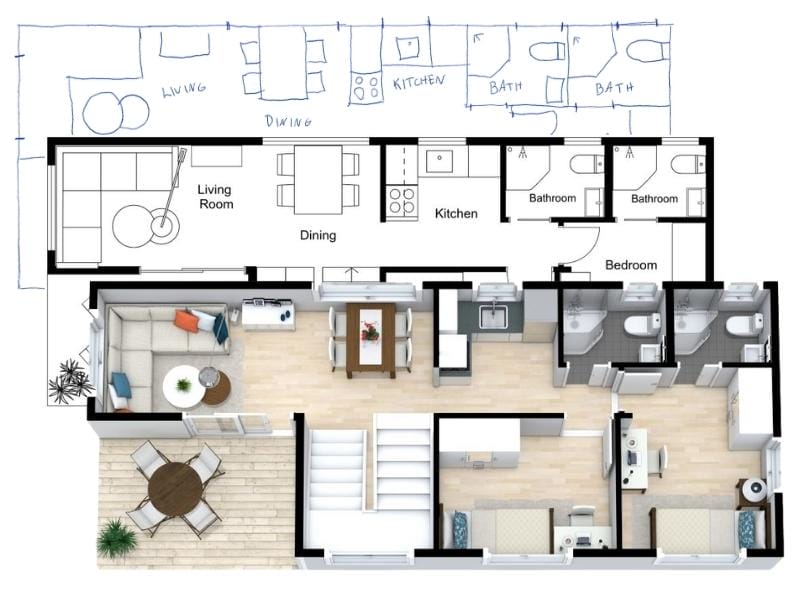
When you need floor plans for multiple properties, creating every layout yourself can quickly become time-consuming.
Instead of drawing or capturing each property manually, you can send in your materials and receive professionally redrawn floor plans ready to use. This is especially useful for real estate professionals, property managers, and teams handling floor plans regularly.
A good fit when:
- You need floor plans for multiple properties
- Fast turnaround is important
- You want consistent, professional results
To order floor plans, you simply upload a sketch, photo, or existing plan and have it redrawn by our expert illustrators. Professional 2D and 3D Floor Plans are delivered the next business day, along with a digital project that can be opened and edited in the RoomSketcher App.
Which Option Is the Best?
No matter which method you choose, the goal is the same: getting a floor plan you can edit, customize, and share with confidence.
The easiest option is usually the one that matches what you already have — whether that’s an empty space, a rough sketch, or an existing floor plan ready to reuse.
With RoomSketcher, you can draw, capture, convert, trace, or order floor plans using the workflow that fits your project best.
What Users Say About RoomSketcher
RoomSketcher has elevated my design presentations to a new professional level. It is easy to use, affordable, and provides excellent technical and customer service support.
I absolutely love RoomSketcher - it’s saved me thousands of pounds of architects fees by designing myself and walking through - I’ve redeveloped two properties using it and the images to the final build are uncanny.
RoomSketcher has changed the way I work. I can now do all the work I normally had to outsource on my own.
Recommended Reads
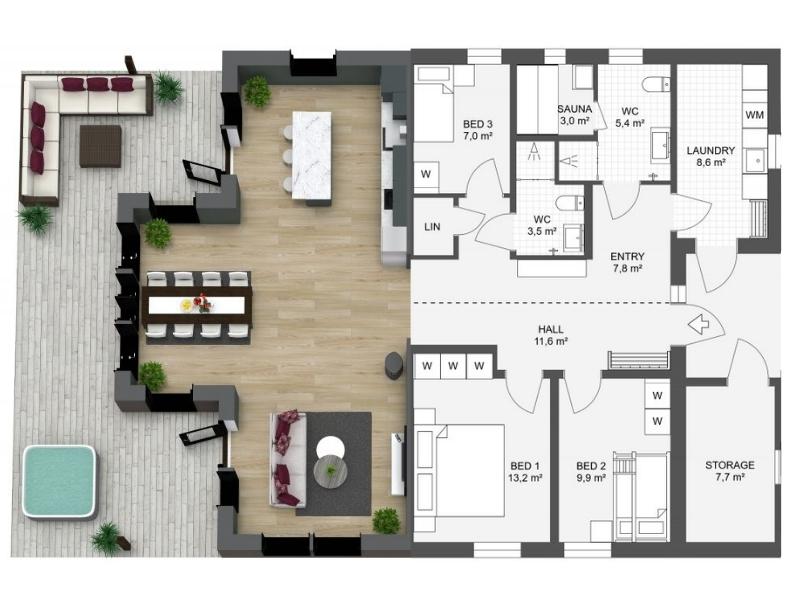
The 8 Best Floor Plan Software Tools (2026 Update)
The market is flooded with floor plan software options, each promising to make your processes easier and more efficient. We've put the top tools to the test!
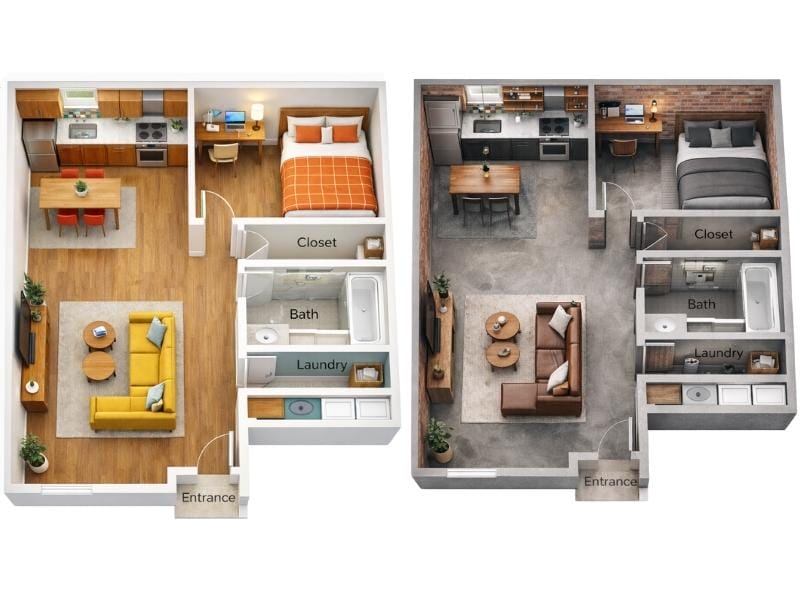
Can ChatGPT Make Floor Plans? We Put It to the Test
ChatGPT can generate simple floor plan sketches, but it struggles once you start making changes. We tested how well it handles real layout work, from editing and iteration to reuse across 2D and 3D.

10 Ways to Find the Floor Plan of a House
Access to floor plans is essential for homeowners, real estate agents, and prospective buyers alike. If you’re struggling to find the original blueprints for a home, don’t worry—there are several effective strategies to help you locate them.