AI Render Prompt Guide and Inspiration
A good prompt gives AI Render a clear direction while leaving room to explore. In this guide, you’ll find prompt writing tips, practical examples, and ideas you can adapt to your own project.
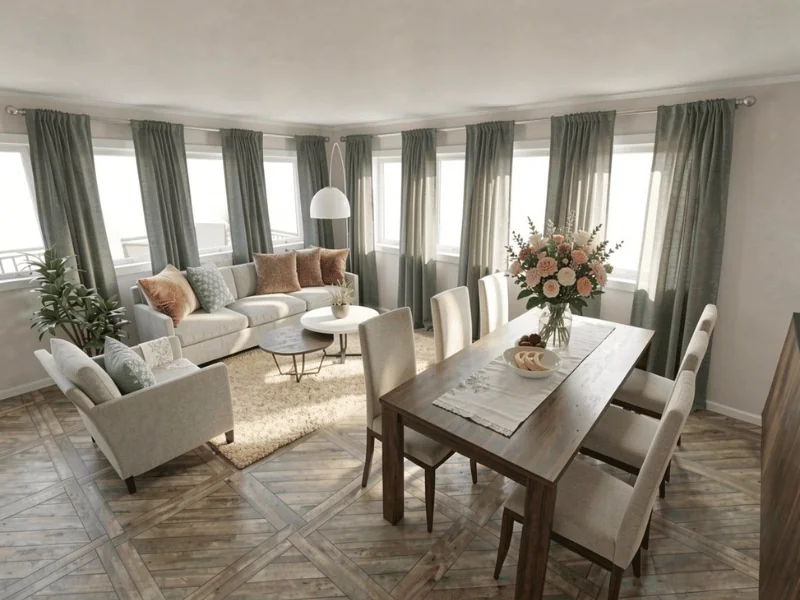
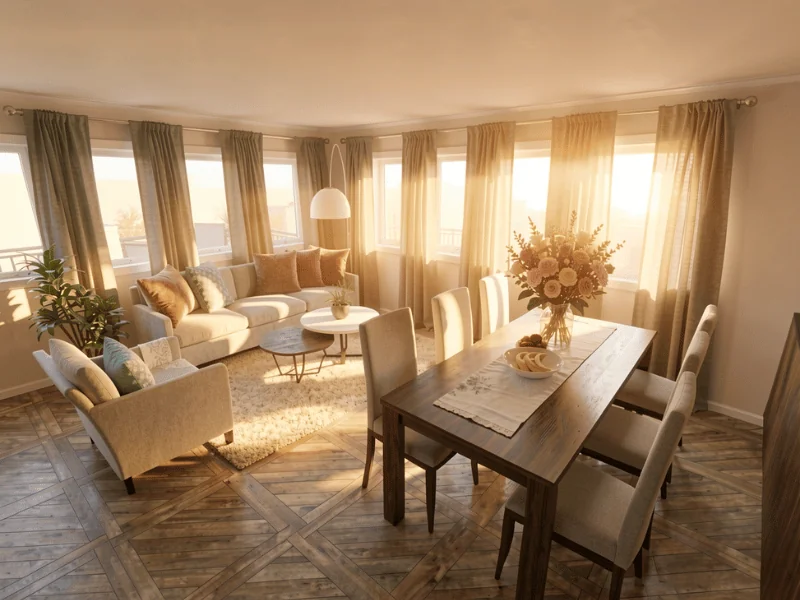

Quick summary:
The easiest way to guide AI Render is to be clear and specific. Say what you want to change, describe the look you are aiming for, and add details where they are useful. Starting with one change at a time can also make it easier to build on the parts you like.
AI Render lets you explore new looks directly from your 3D image. Simply describe what you want to change, and AI Render updates the room for you.
Try new flooring, wall colors, furniture, materials, lighting, or a completely different style. AI Render works with your existing image, so it changes the look and feel of the room without rebuilding your floor plan or moving the walls.
Clear prompts help AI Render understand the changes you want to make.
Tips for Writing Better Prompts
Follow a prompt formula
When writing a prompt, use this structure:
What you want to change + the new look + any specific details.
End the prompt with “Keep everything else the same”.
For example:
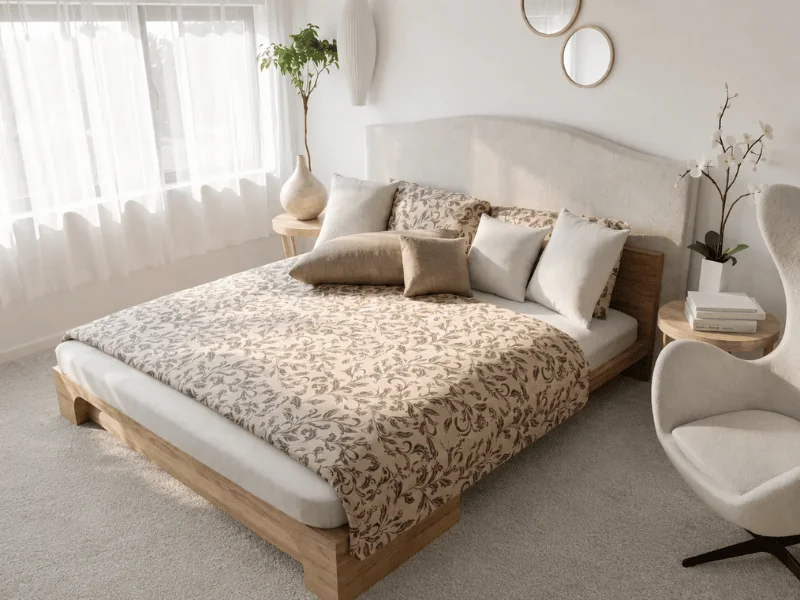
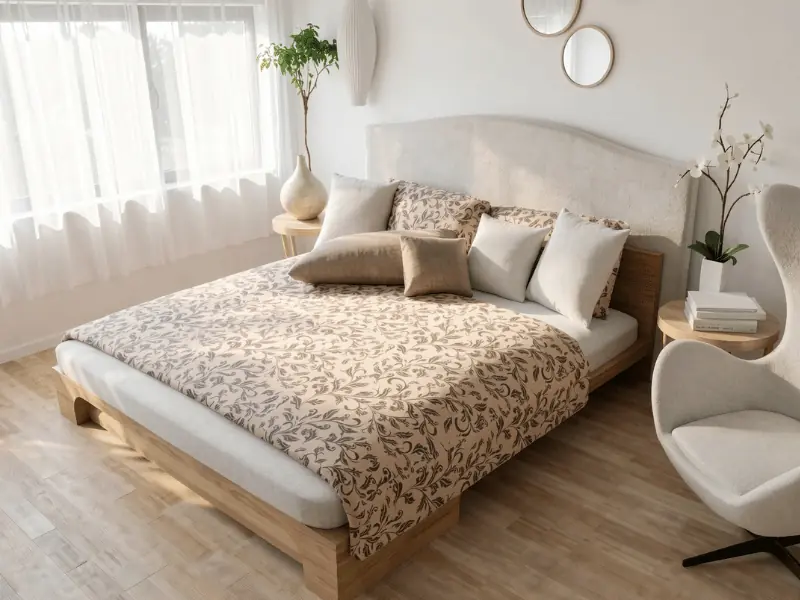
Replace the carpet with light oak hardwood flooring. Keep everything else the same.
Change one thing at a time
Start with one change, check the result, and build from there.
This gives you more control and makes it easier to keep the parts you like. For example, change the flooring first, then try a new wall color before changing the furniture or lighting.
Prompt example:
Replace the carpet with light oak hardwood flooring. Keep everything else the same.
Be specific
Clear prompts give better results. Tell AI Render what you want to change and what the new result should look like.
Instead of: Make it nicer.
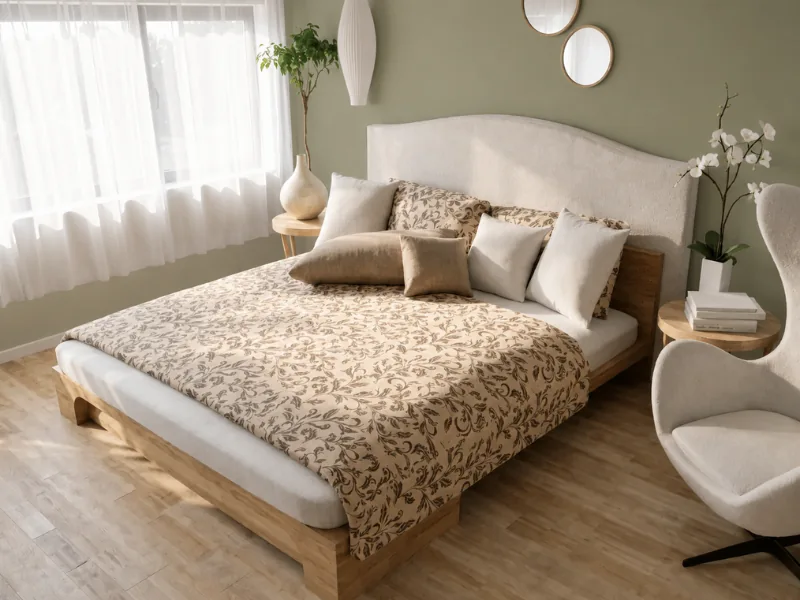
Write: Change the wall color to a warm sage green with subtle olive undertones and a matte finish.
The second prompt works better because it names both the item and the new material.
Prompt example:
Change the wall color to a warm sage green with subtle olive undertones and a matte finish. Keep the furniture and layout unchanged.
Add details
Specific details often make the biggest difference to the result. Describe the materials, colors, finishes, objects, and quantities you want to see.
For example:
- Materials like oak, marble, linen, or brushed brass
- Colors like warm white, sage green, charcoal, or terracotta
- Finishes like matte, polished, glossy, or weathered
- Quantities like “two armchairs” or “three pendant lights”
Try to use concrete descriptions instead of broad words like “cozy.” Cozy can mean different things to different people, while details like “a chunky cream wool throw and a soft area rug” give AI Render a much clearer direction.
Prompt example:
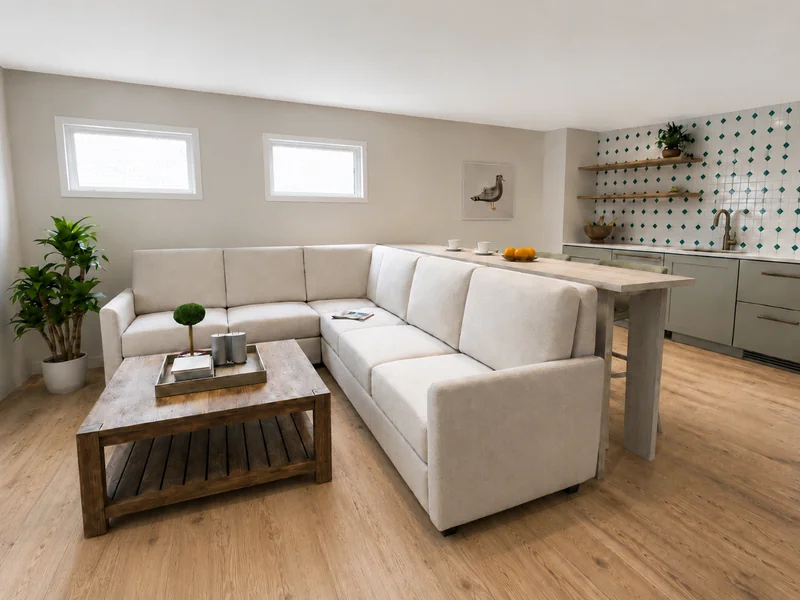
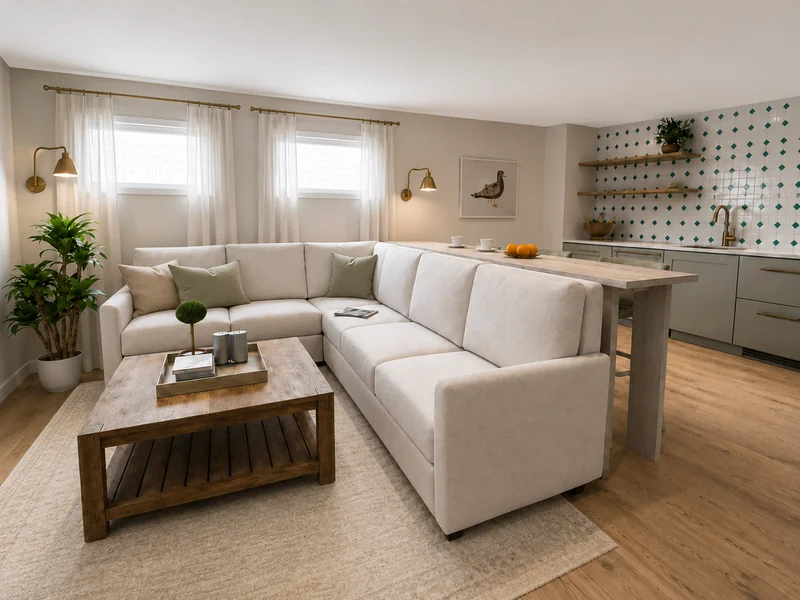
Add white linen curtains, a soft beige area rug, light green and beige pillows in the sofa, and warm brass wall lamps.
Use a style as a shortcut
When you want to change the overall look of a room, name a recognized design style in your prompt. This gives AI Render a clear direction without requiring you to describe every detail.
You can use styles like Scandinavian, mid-century modern, industrial, Japandi, coastal, or minimalist. For a more specific result, combine the style with a mood or lighting cue, such as “bright and airy” or “warm evening lighting.”
Prompt example:
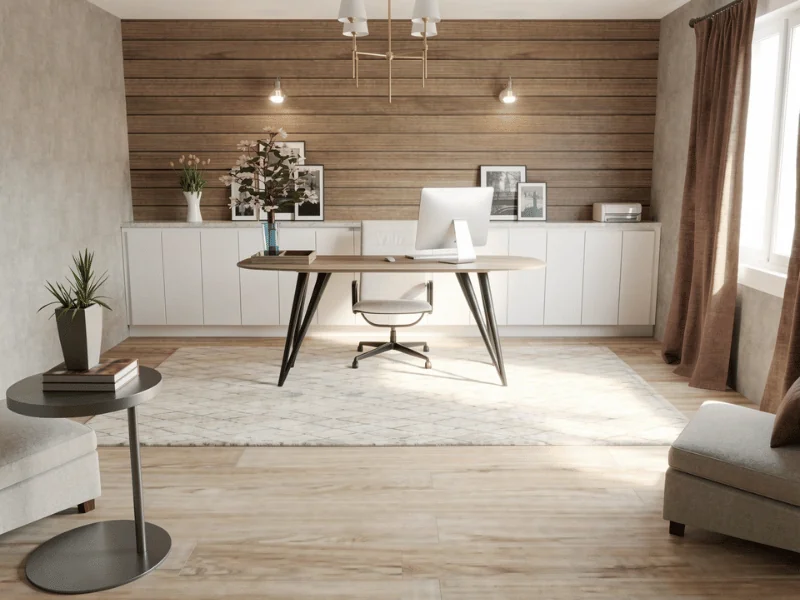
Give the room a polished classic industrial style with clean exposed brick, refined dark metal, well-finished wood, neat leather furniture, factory-style lighting, and minimal vintage decor. Keep the furniture layout unchanged.
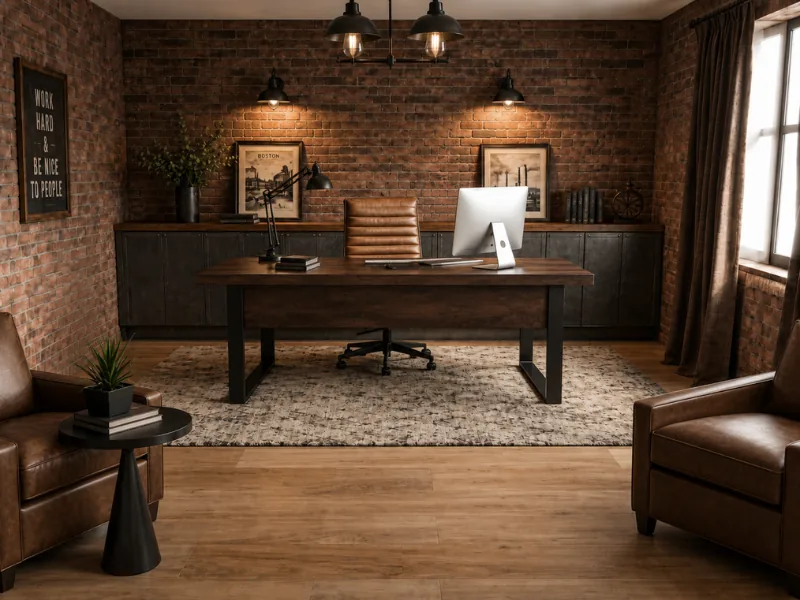
9 Ideas for Your Next AI Render
Elin, RoomSketcher's 3D Project Manager, has selected nine prompts to help you explore what AI Render can do. Drawing on her experience in interior design, web design, and 3D design, the examples cover everything from materials and lighting to styling, color, and atmosphere.
Use them for inspiration, or adjust them to suit your own room.
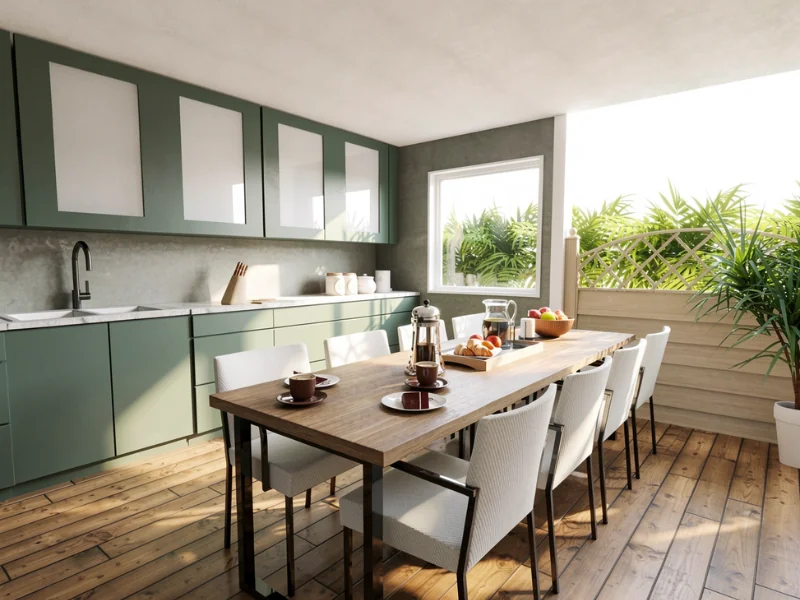
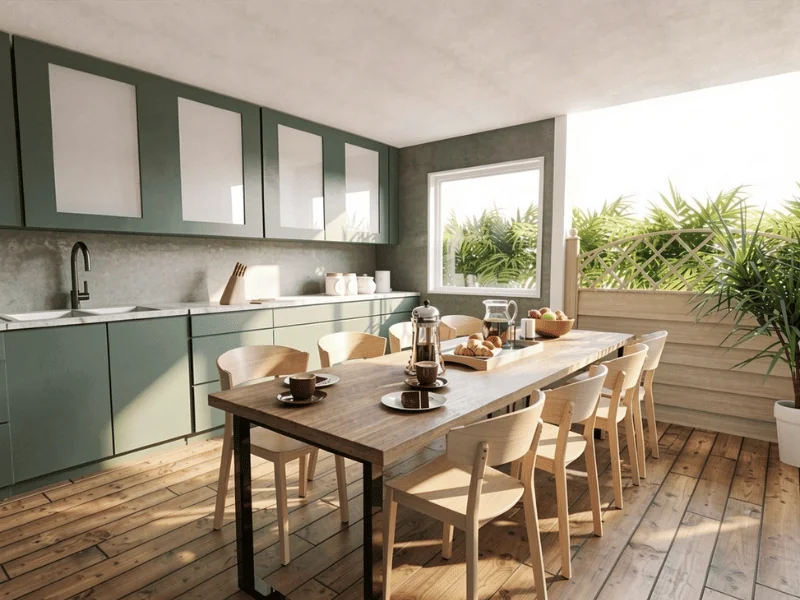
1. Replace furniture using a reference image
Use a reference image when you want to replace furniture with a specific item. This helps you see how the new piece could look in the room while keeping the rest of the design the same.
Reference image:

Prompt:
Replace all dining chairs with the chair from image 2. Match the reference chair exactly in design, proportions, materials, finish, and color. Keep the chairs in the same locations and orientations as the originals. Keep everything else unchanged.
2. Change the lighting
Sometimes all a room needs is different light. This prompt keeps the design exactly as it is and shifts the scene to early morning, giving the room a softer, fresher atmosphere.
Prompt:
Change the lighting to early morning light. Keep everything else the same. Make the result photorealistic.
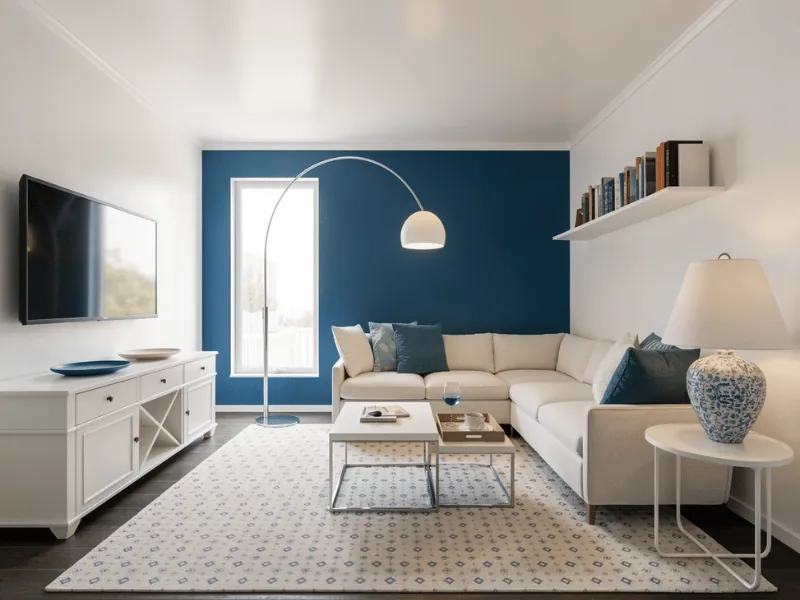
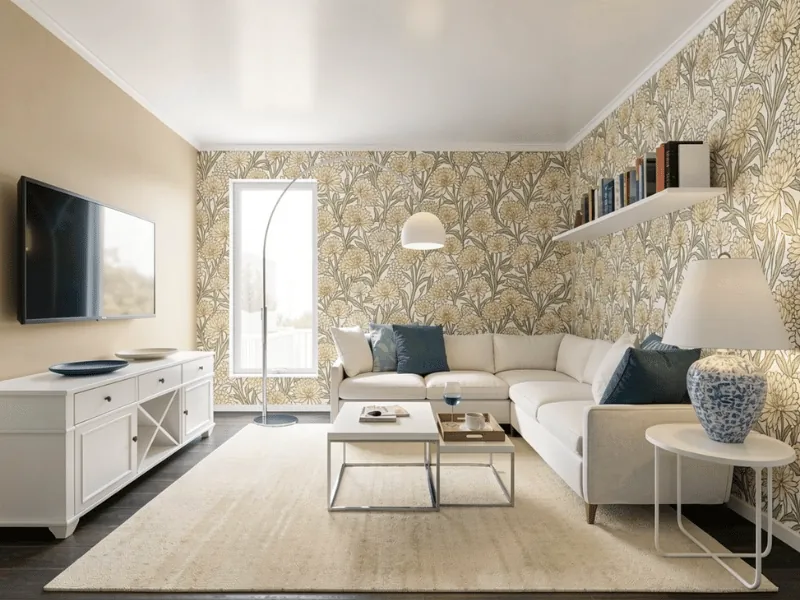
3. Add wallpaper
Adding wallpaper is an easy way to add pattern and personality without changing the whole room. This prompt updates the walls and makes a few small adjustments so the overall look still feels balanced.
Prompt:
Replace only the two walls behind the sofa with a light chrysanthemum-pattern wallpaper inspired by William Morris. Use a realistic small-to-medium scale with a dense, seamless repeating pattern. Apply wallpaper only to the two walls behind the sofa. Change the left wall to a soft light beige tone. Recolor the rug to cream tones. Keep everything else unchanged.
4. Add people
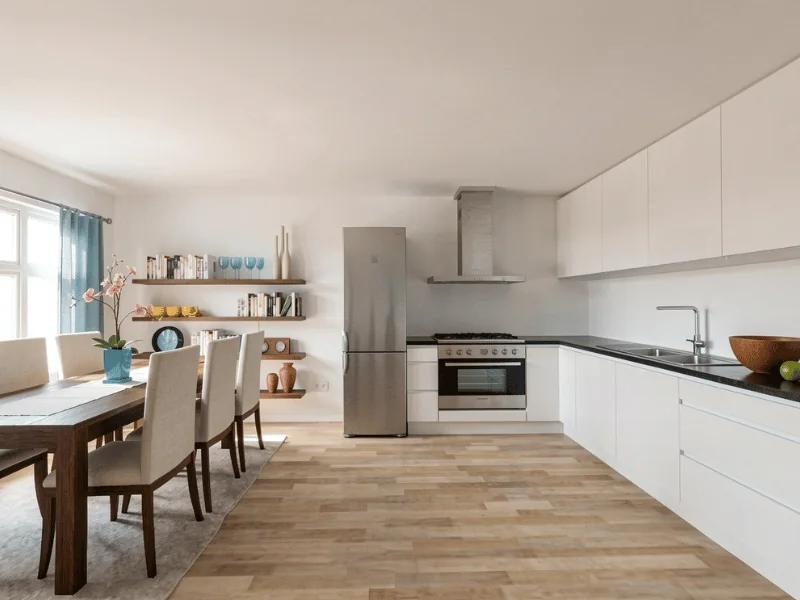
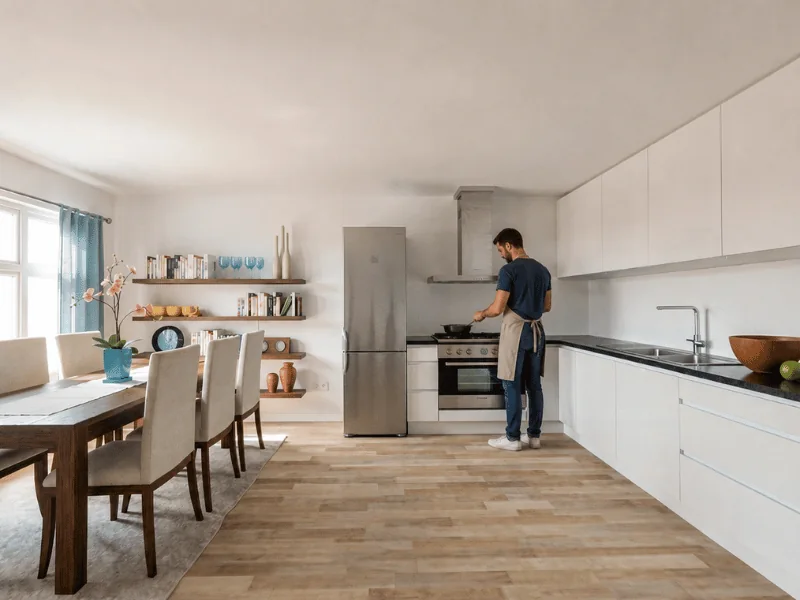
Bring the room to life by showing people using the space. In this prompt, a man is added to the kitchen, while the room itself remains the same.
Prompt:
Add a man wearing an apron, standing naturally at the stove and cooking. Keep everything else unchanged.
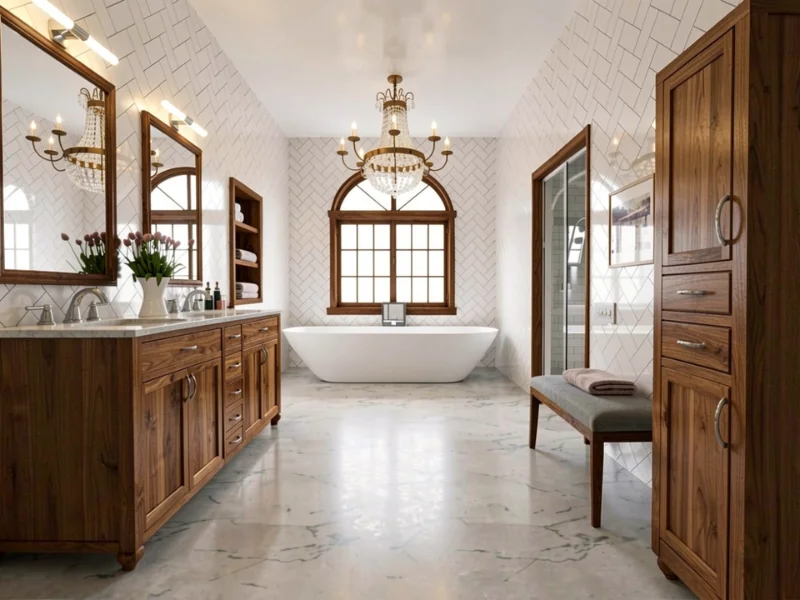
5. Change materials
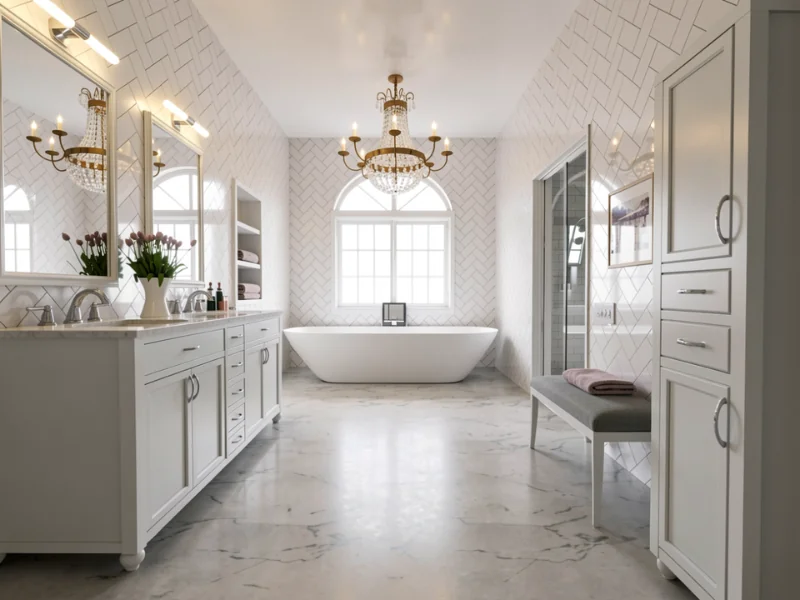
Materials can make the same room feel warmer, lighter, or more refined. Here, warm walnut replaces the white wood details, creating a stronger contrast and adding depth to the space.
Prompt:
Replace the white wood on the cabinets, shelves, trim, window muntins, window frame, bench legs, and mirror frames with warm walnut wood. Keep everything else unchanged.
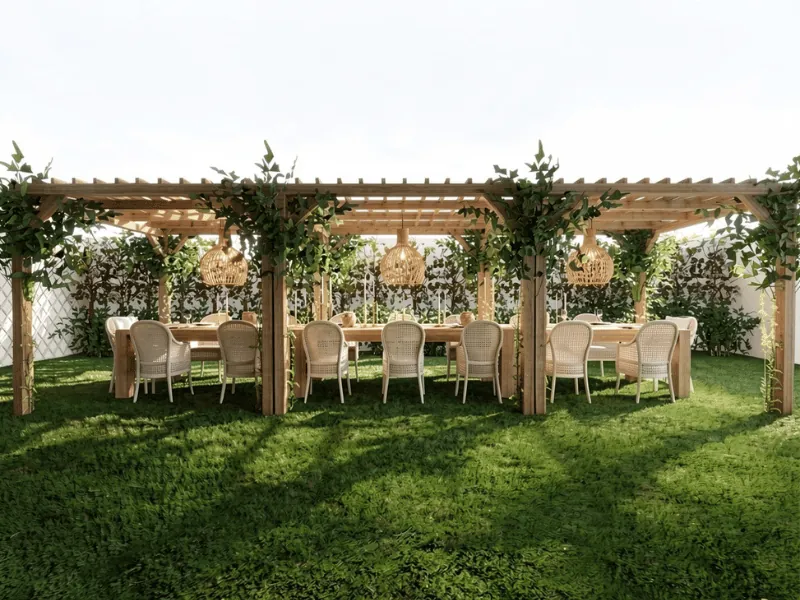
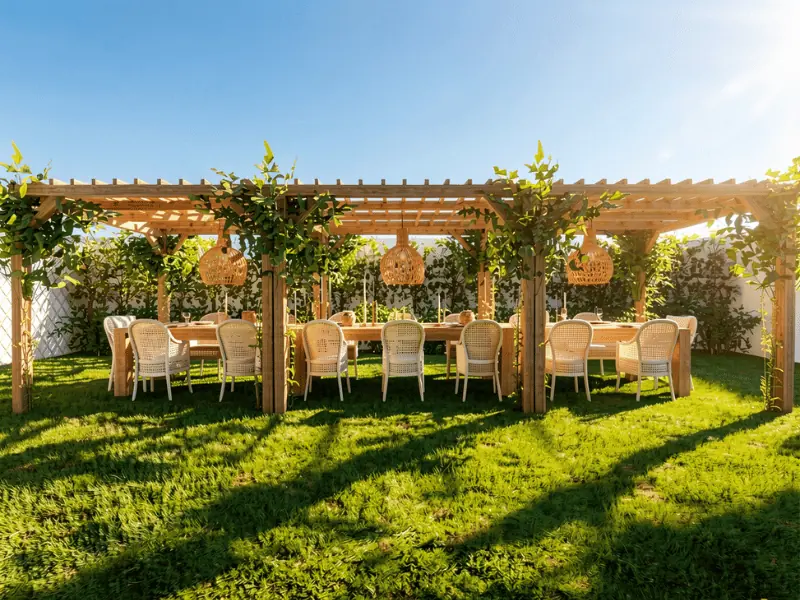
6. Change the weather
See how an outdoor space looks in different weather conditions. In this example, realistic sunlight and shadows transform the scene into a bright, sunny day without changing the design.
Prompt:
Make this look like a beautiful sunny day with realistic light and shadows. Keep everything else unchanged.
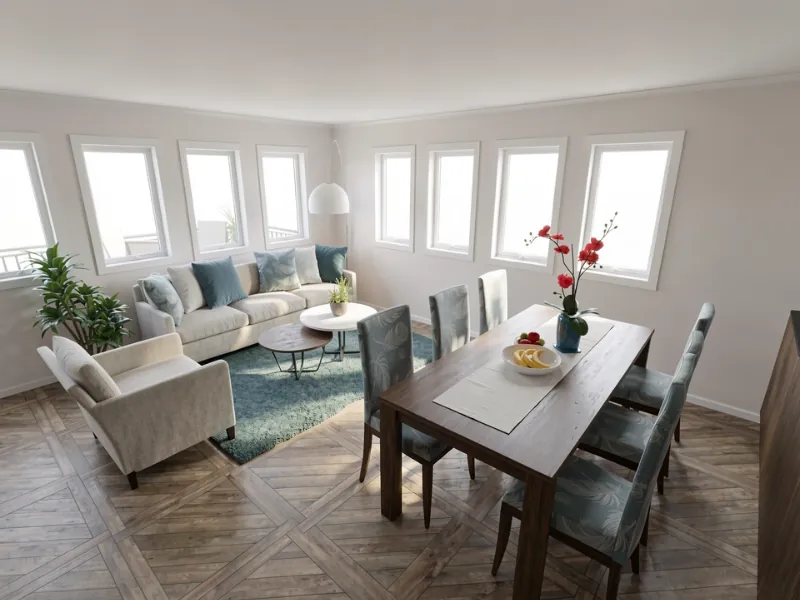
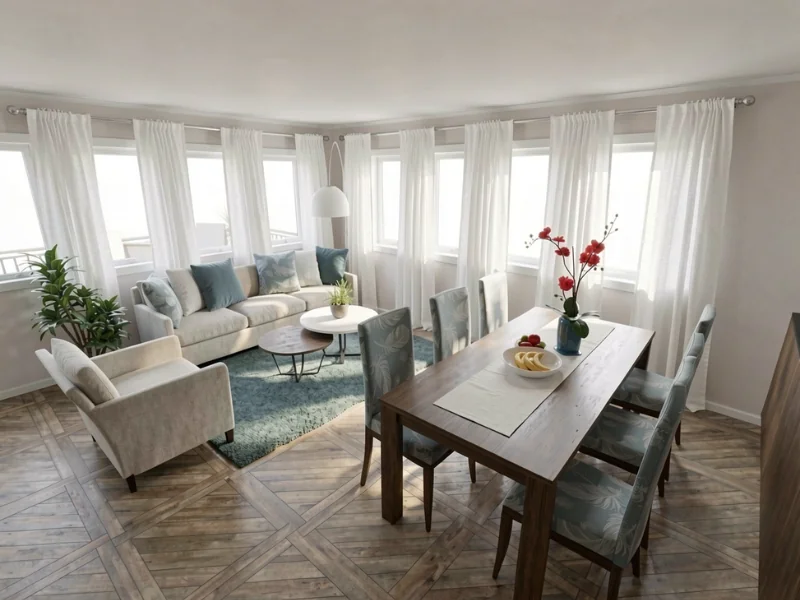
7. Add curtains
Curtains can soften a room and make the windows feel more finished. In this example, white linen panels are added between the windows without changing their size or position.
Prompt:
Keep the window placement and size exactly as they are. Add white linen curtain panels between each window.
8. Change the color palette
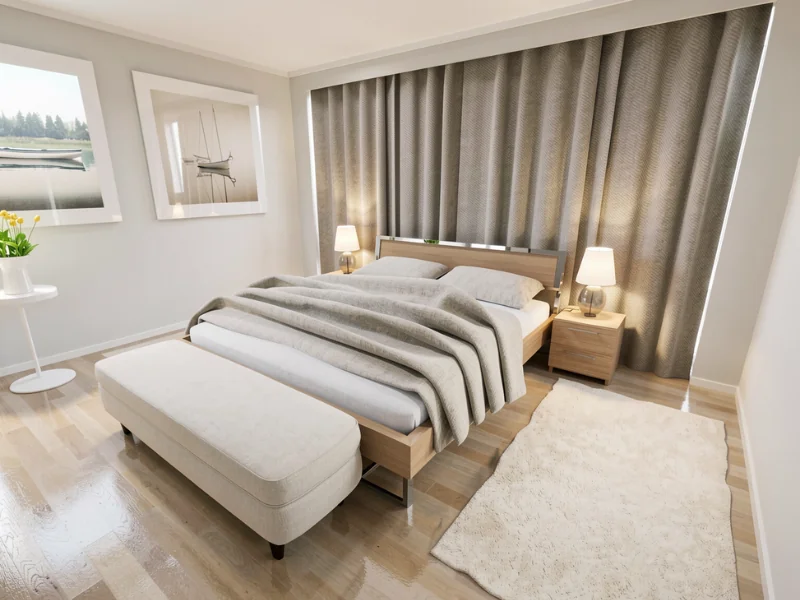
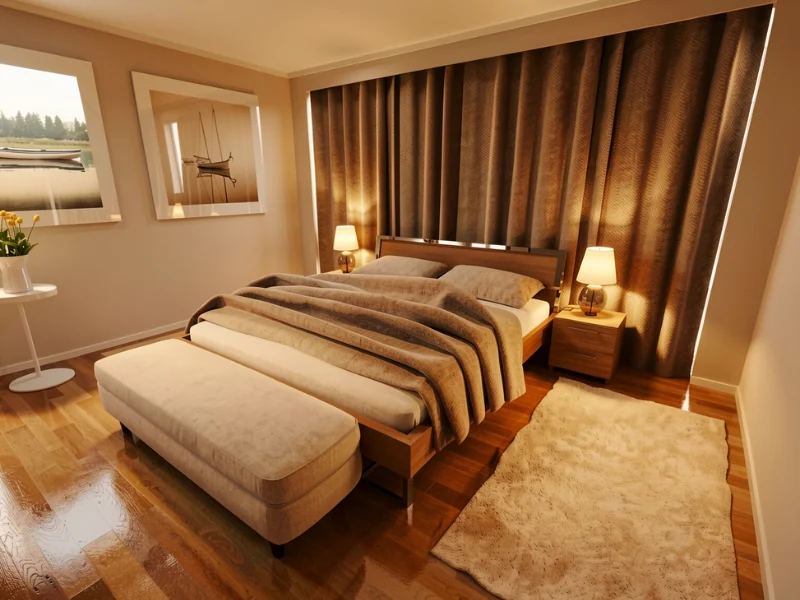
A subtle shift in tone can make the whole room feel more inviting. Here, the original colors remain while the materials and finishes take on a slightly warmer look.
Prompt:
Subtly warm all material finishes and surfaces while preserving the original color palette. Keep the colors rich, realistic, and accurate.
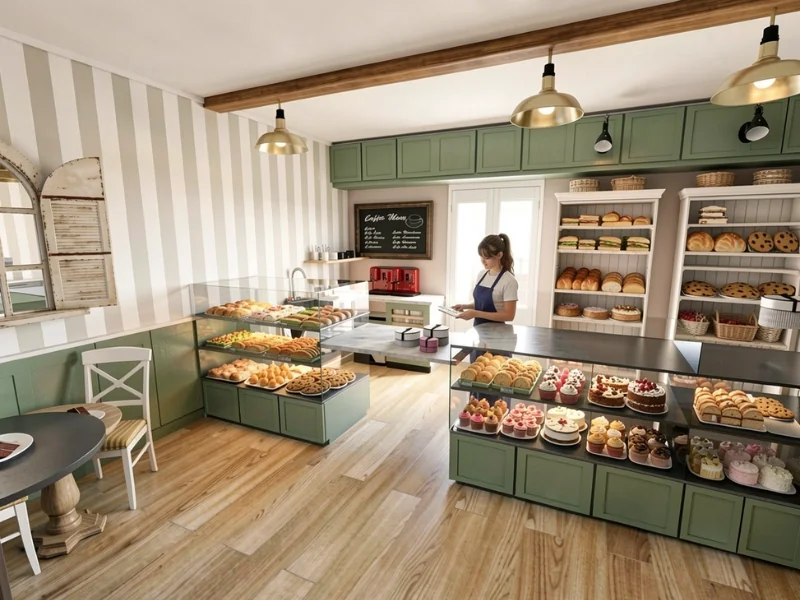
9. Fill empty shelves
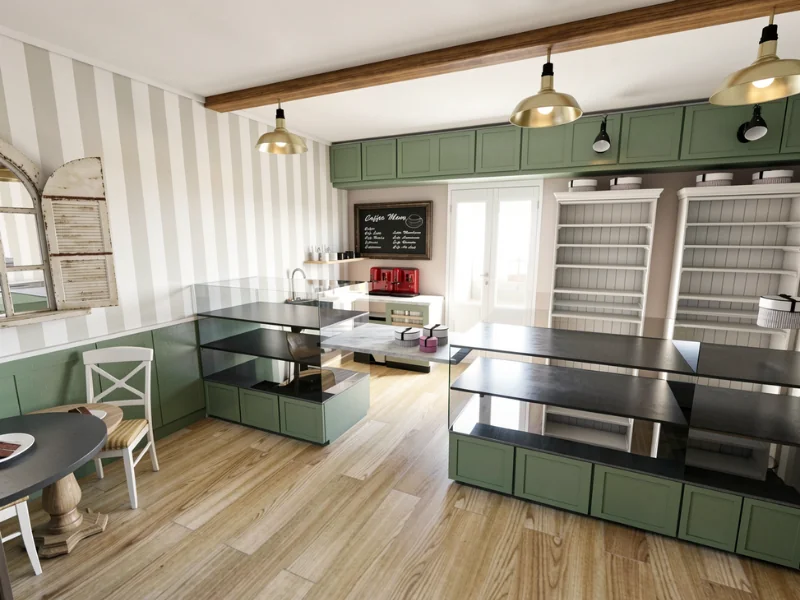
Turn an empty bakery into a scene that feels ready for customers. This prompt fills the shelves with food and adds an employee behind the counter without changing the rest of the space.
Prompt:
Fill the shelves with fresh pastries, sandwiches, cookies, cakes, and cupcakes. Add a young bakery employee behind the counter ready to serve customers. Keep all architecture, furniture, lighting, and composition unchanged.
Try AI Render in Your Own Project
AI Render is available from within the RoomSketcher web portal. Sign in, select a project, and explore how different colors, materials, furniture, lighting, and styles could transform your space.
Don’t have a RoomSketcher account? Create one for free and start bringing your ideas to life.
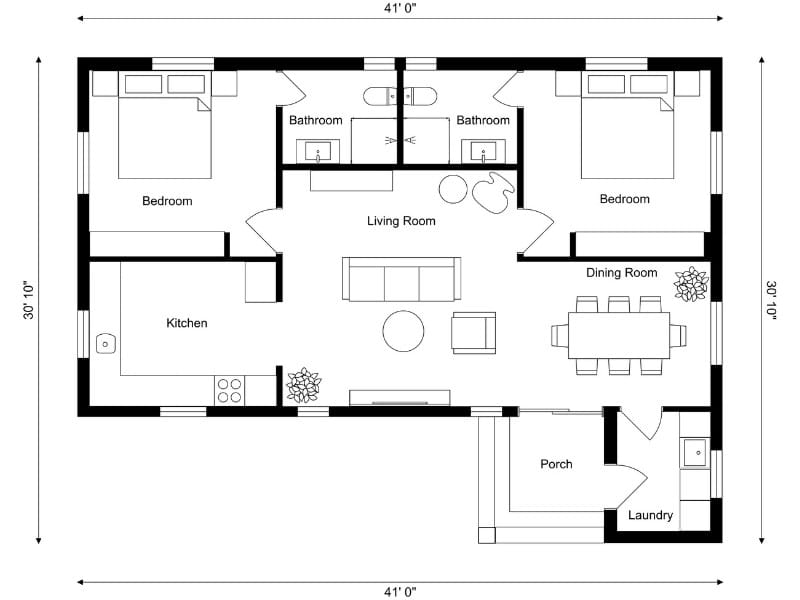
How to Create a Floor Plan (5 Easy Methods)
The easiest way to create a floor plan depends on your starting point. Sometimes you’re working with an empty space. Other times, you already have a sketch, PDF, or old floor plan you want to reuse. Learn about the five ways you can create a floor plan with RoomSketcher.

How RoomSketcher became Interior Designer Katie Christensen’s “magic wand”
Why is RoomSketcher the right software for interior designers? We spoke with Katie Christensen, a RoomSketcher user and a professional interior designer with almost 30 years of experience, for her thoughts on the matter.
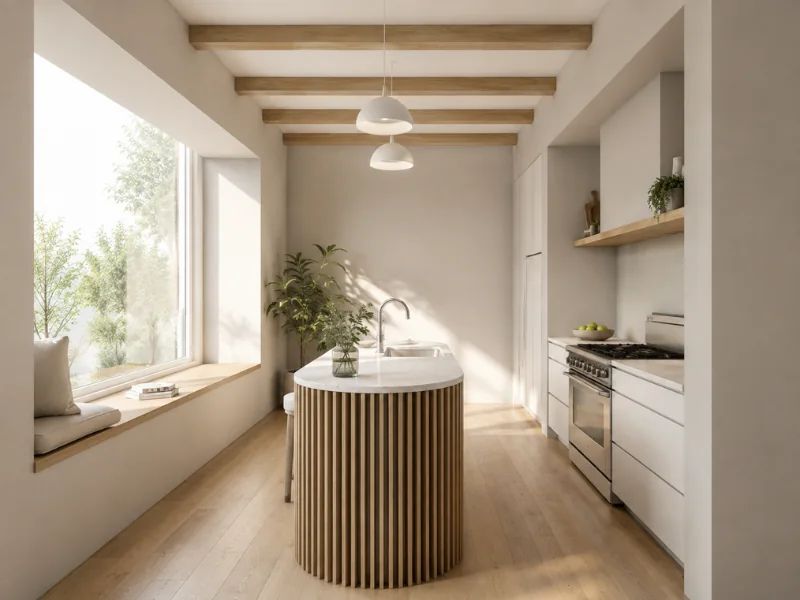
How to Create Photorealistic Floor Plan Visuals with AI
Want to see how your floor plan could look in real life? Learn how to prepare your layout, choose the right view, and use AI Render to create lifelike interior images and photorealistic 3D Floor Plans.